

1
Start an Editorial shoot
Go to imagine.art/fashion-studio and click Editorial image (or Editorial video). This opens the Editorial Shoot editor, with the settings panel on the left and your generations on the right.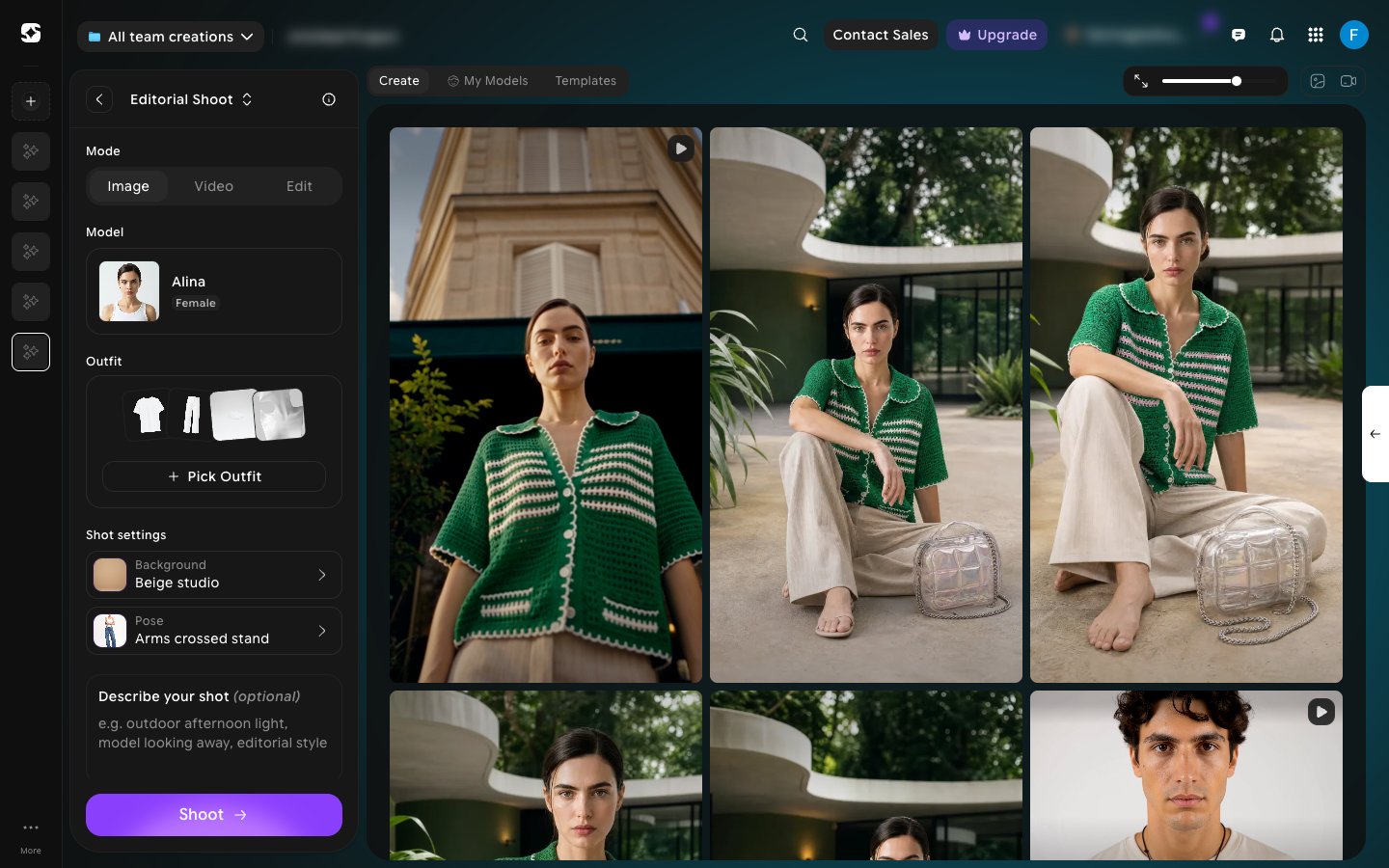
2
Build your shot
Configure the shot from the left panel:
- Mode — choose Image, Video, or Edit.
- Model — pick a preset AI model, or one of your own saved models.
- Outfit — click Pick Outfit to choose the Top, Bottom, Footwear, and (optionally) Accessories in one panel.
- Shot settings — pick a Background and Pose from the built-in libraries.
- Describe your shot (optional) — add your own direction, e.g. “outdoor afternoon light, model looking away, editorial style”.
3
Or start from a template
Prefer to start from an existing look? Switch to the Templates tab above the results to open the Generate across formats gallery, filterable by All, Female, or Male. Pick one to generate from directly instead of building a shot from scratch — see Templates for the difference between this gallery and the one on the landing page.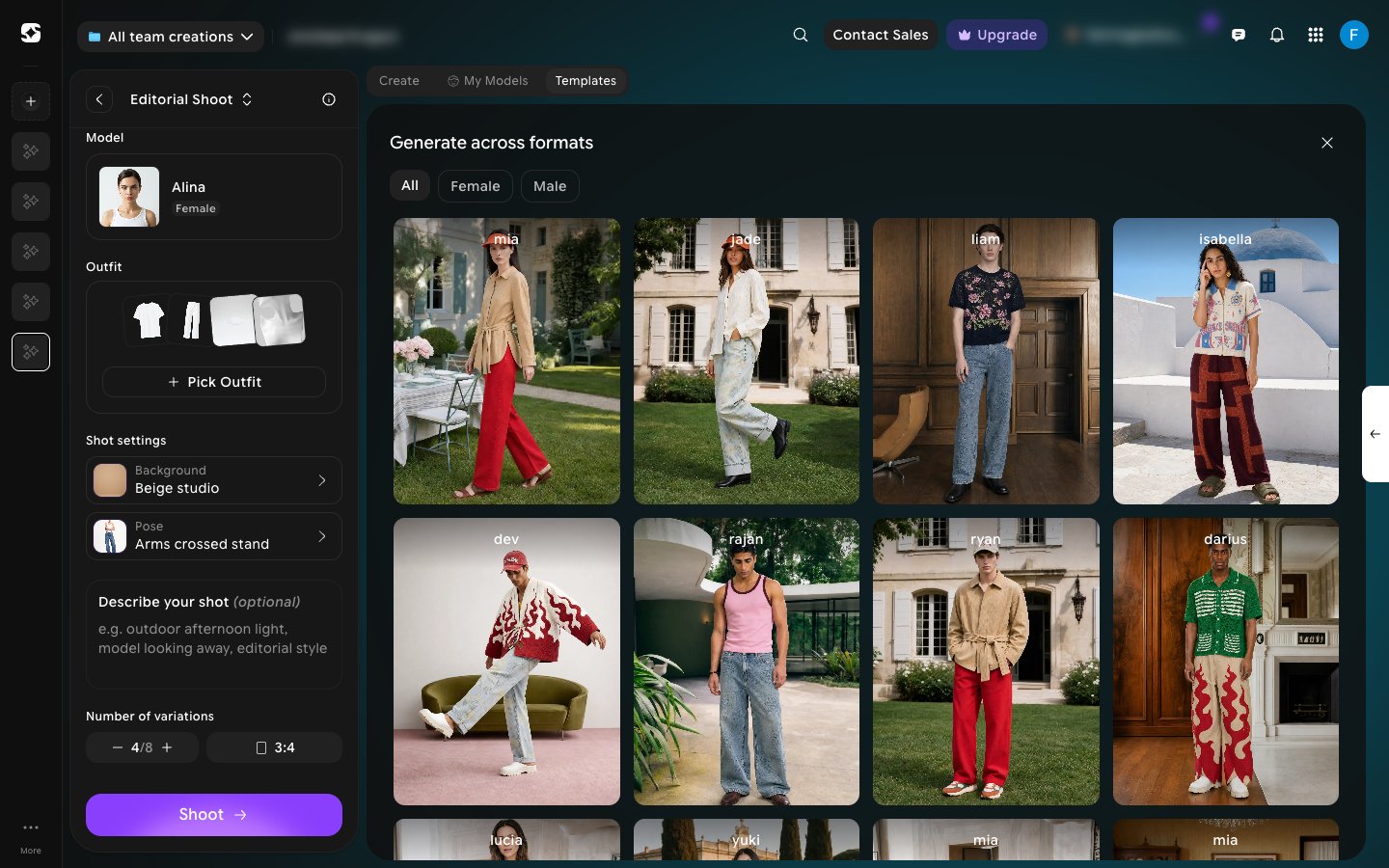
Editorial and Catalog shoots share the same editor and the same model, outfit, background, and pose libraries — see What is Fashion Studio? for how the two modes differ.