

Create your first Image
1
Create your account
Go to imagine.art and click Sign In in the top-right corner. You can sign up using any of the following:
- Google — sign in with your Google account
- Facebook — sign in with your Facebook account
- Discord — sign in with your Discord account
- Email — enter an email address and create a password
2
Choose a plan
All new accounts receive 100 free credits per day — no subscription required. Free credits reset every 24 hours and are a great way to explore the platform before committing to a plan.When you’re ready to unlock more credits, Pro models, and advanced features, visit the Pricing page to compare subscription plans (Standard, Ultimate, and Creator).
Pro models (labeled “Pro” in the interface) require an active subscription. Free daily credits cannot be used to access them.
3
Open the Image or Video tab
From your dashboard, navigate to the Image tab at imagine.art/image to generate still images, or the Video tab at imagine.art/video to produce short video clips. Each tab is a self-contained creative studio.
4
Write your first prompt
At the bottom of the screen you’ll find the prompt box — this is where you describe what you want to create. You can be brief or highly detailed; the AI handles both styles.A few prompts to get you started:
a cozy coffee shop on a rainy eveningfuturistic cityscape at sunset, neon lights, cyberpunk styleplayful golden retriever puppy in a field of flowers
5
Generate your creation
Click the Create button. ImagineArt sends your prompt to the selected AI model and returns results shortly:
- Images — four variations, typically ready in 4–15 seconds depending on the model and settings.
- Videos — one clip, typically ready in 30–60 seconds depending on the model and settings.
Move between tools
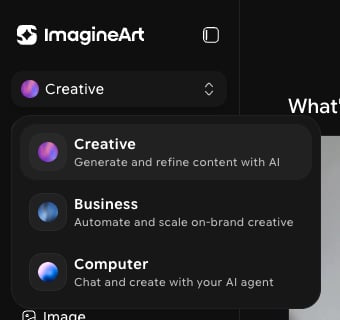
ImagineArt has two switchers that help you get around quickly.Switch workspaces
The switcher at the top of the left sidebar moves you between ImagineArt’s three workspaces. Click it and choose one:- Creative: generate and refine content with AI. This is where you’ll find Image, Video, Audio, Edit, Upscale, and the studios.
- Business: automate and scale on-brand creative with Workflows, templates, brand kits, and more.
- Computer: chat and create with your AI agent, Imagine Computer.
Jump to a tool
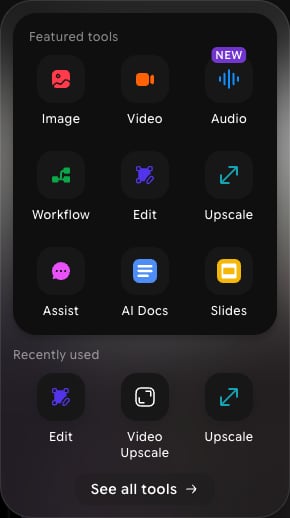
Click the grid icon in the top bar, next to your profile picture, to open the tool switcher from anywhere on the platform:- Featured tools: one-click shortcuts to tools such as Image, Video, Audio, Workflow, Edit, and Upscale.
- Recently used: the tools you opened most recently, so you can pick up where you left off.
- See all tools: opens the full list of ImagineArt tools.
Use images to guide your creations
Beyond text prompts, you can use images as creative input. Inside the prompt box, click the + icon to open the Add Image tray. Four modes are available:Add animation to images
You can turn any still image — including images you generated with ImagineArt — into a video. Head to the Video tab and use the Image to Video feature to upload a static image and animate it with fluid, realistic motion.Explore the creative suite
Image Tools
Generate high-fidelity images from text prompts, edit with advanced models, apply style references, and use image prompts to guide your compositions.
Video Tools
Produce cinematic video clips from text or images using models like Google Veo 3, Kling 2.5, and Hailuo 02 Pro. Add VFX and animate images.