

Video Studio modes
When you open Video Studio, pick a mode under Choose a Mode: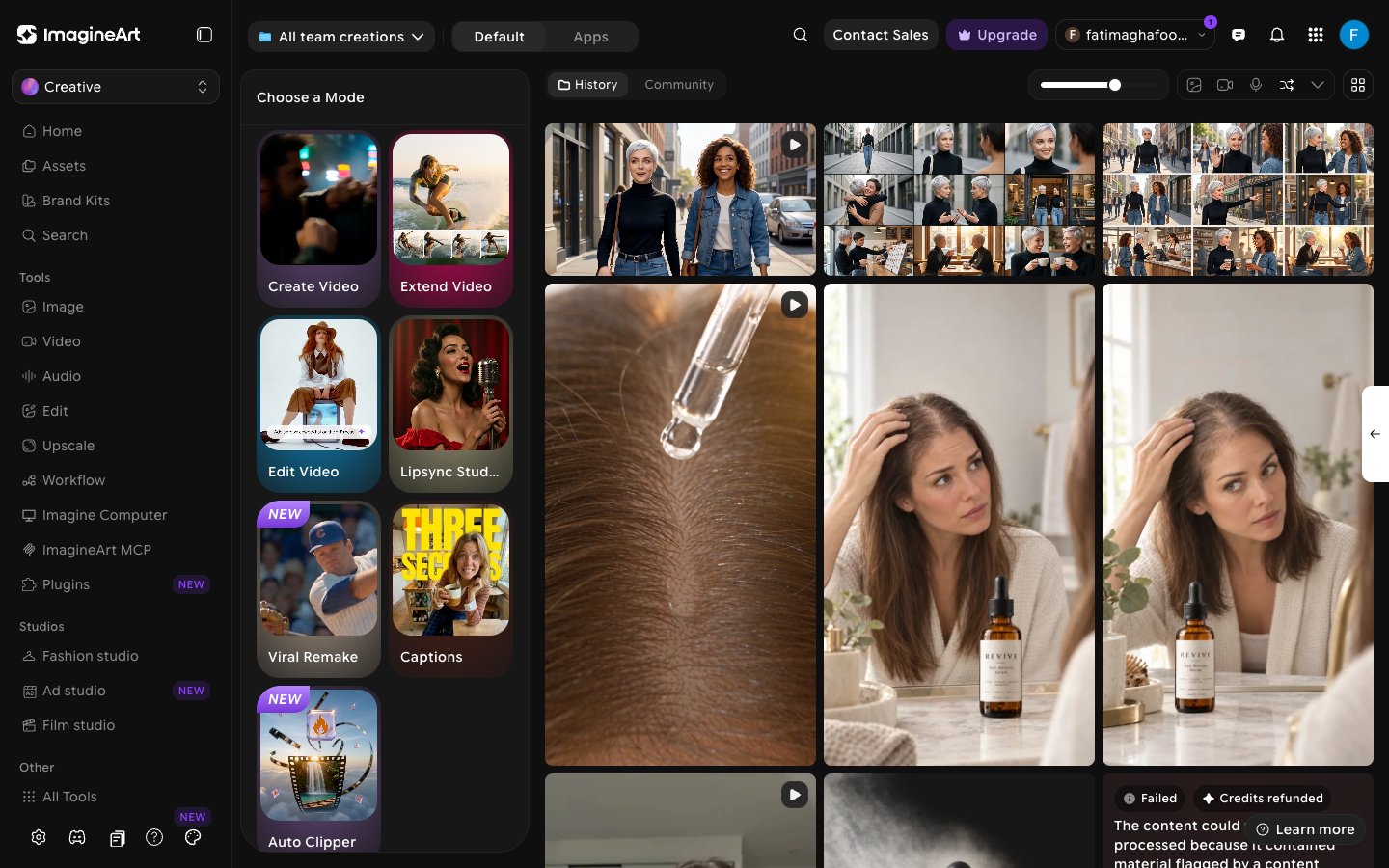
Powerful Creative Tools at Your Fingertips
Text to Video
Image to Video
Reference to Video
Reference Video
Edit Video
Lipsync
Video Effects
Video Extend
Motion Control
Elements
Viral Remake
Captions
Auto Clipper
Video Upscale
Video Credits
Aspect Ratio Guide
Select the aspect ratio that fits your project’s needs:How it works?
Video Studio offers a suite of AI-powered tools to take your video from concept to completion:- Create a new video from a text prompt using our most advanced video generation models.
- Animate a still image into a video with Image to Video, or build a scene from multiple reference images with Reference to Video.
- Edit existing footage using natural language — remove objects, swap backgrounds, adjust lighting, and more.
- Apply effects with Video Effects to add cinematic VFX, motion blur, or lighting treatments to any clip.
- Extend any generated video by 5 seconds and guide the continuation with a custom prompt.
- Animate characters with Motion Control by transferring movement from a reference video onto your subject, or bring portraits to life with Lipsync.
- Remake a viral video with your own characters, products, or clothes with Viral Remake.
- Caption your video with styled, auto-transcribed captions with Captions.
- Clip long videos into short, captioned vertical clips with Auto Clipper.
- Upscale any video to a higher resolution with Video Upscale.