

How to add captions
1
Open Captions
Go to Video Studio and select Captions under Choose a Mode.
2
Upload your video
Click Upload a video and choose an MP4 or MOV file, up to 100MB.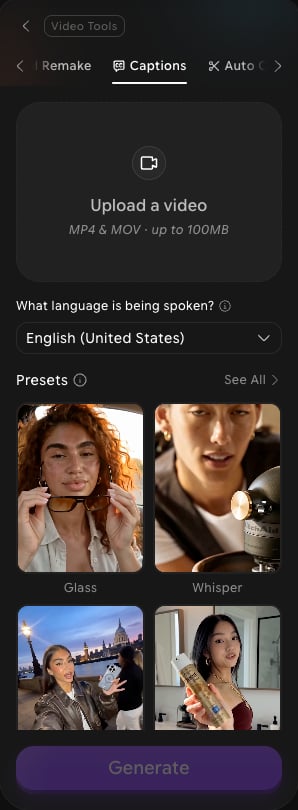
3
Set the spoken language
Under What language is being spoken?, select the language used in your video. The default is English (United States).
4
Choose a caption style
Under Presets, pick a style such as Glass, Whisper, Glide 2, or Fusion. Click See All to browse every caption style.
5
Adjust advanced options (optional)
Click Advanced options to change these settings:
6
Generate
Hover over Generate to see the credit cost, then click Generate. Your captioned video appears in History when it’s ready.
What to do next
Auto Clipper
Turn a long video into short clips, with captions added automatically.
Viral Remake
Remake a viral video with your own characters, products, or clothes.