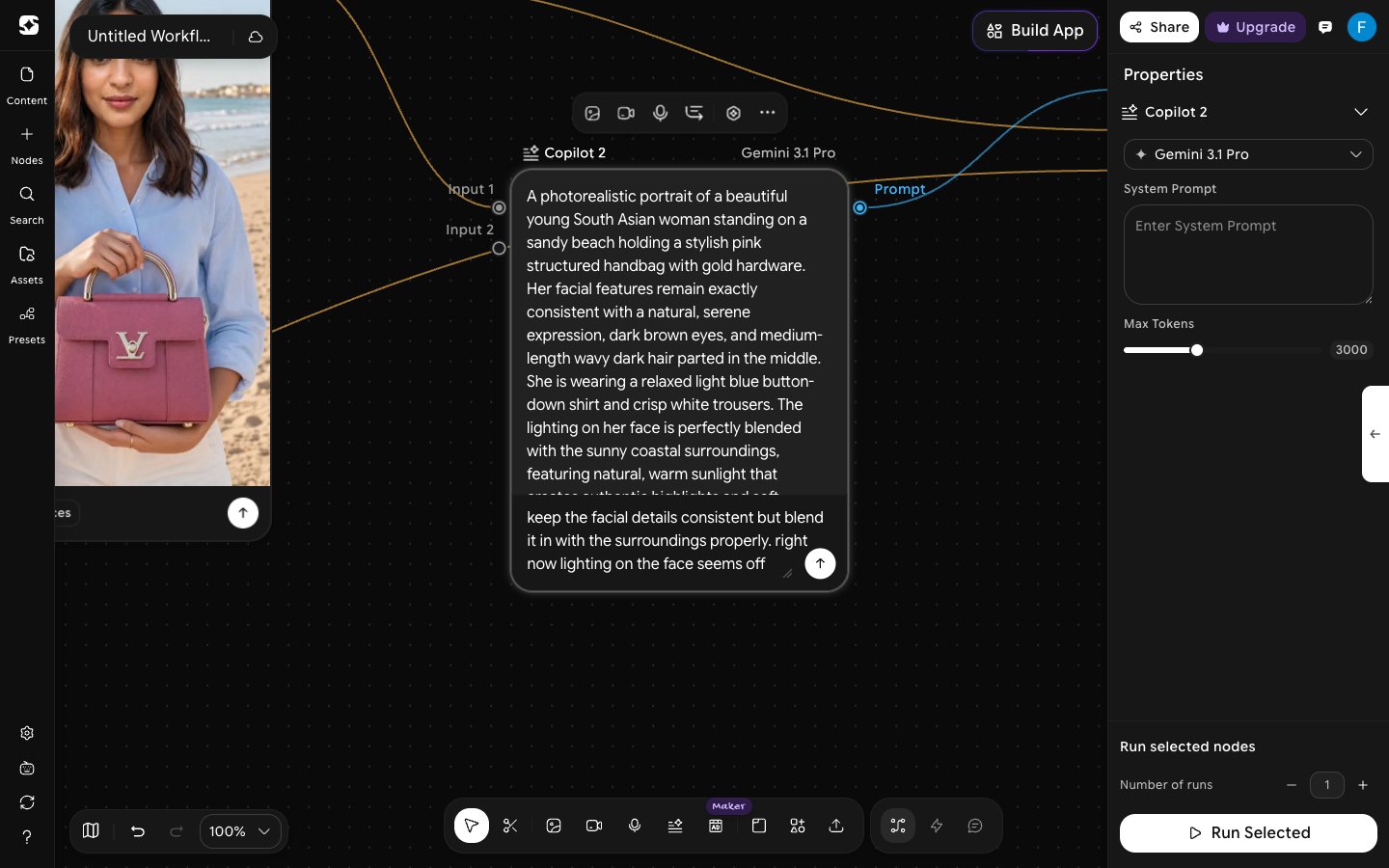
Adding and Managing Nodes
Add a new node:- Click Nodes in the left sidebar
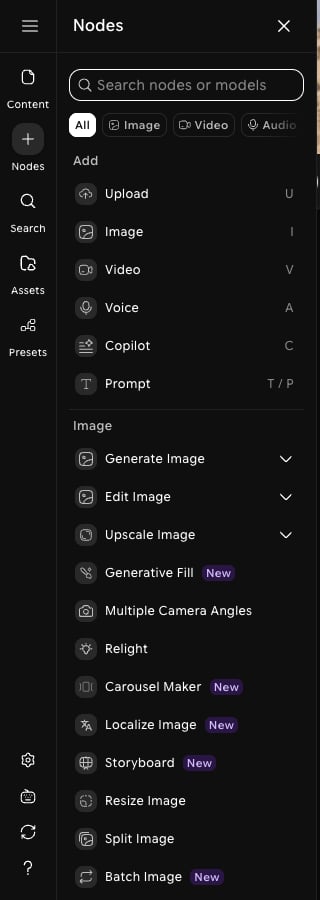
- Right-click or double-click anywhere on the canvas
- Search or browse by category
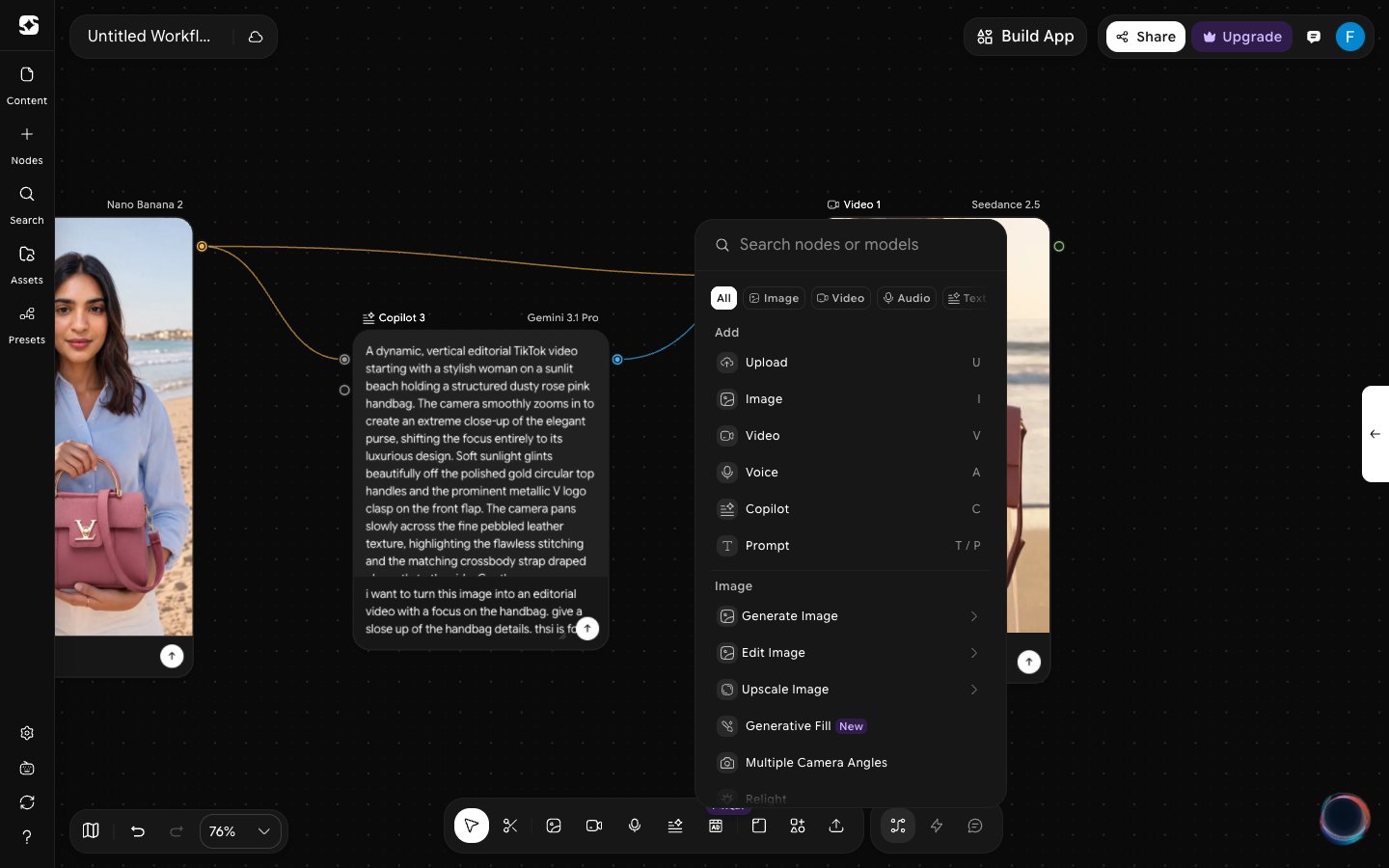
- Click to add the node
- Click and drag it to the desired location
- Select it (Highlighted) and Press
DeleteorBackspace
- Select it and Press
Ctrl/Cmd + D
Connect and Manage Handles
Connect a Handle:- Click and drag from an output slot (right side of a node) and connect to a compatible input slot (left side of another node)
- Release to connect the handle
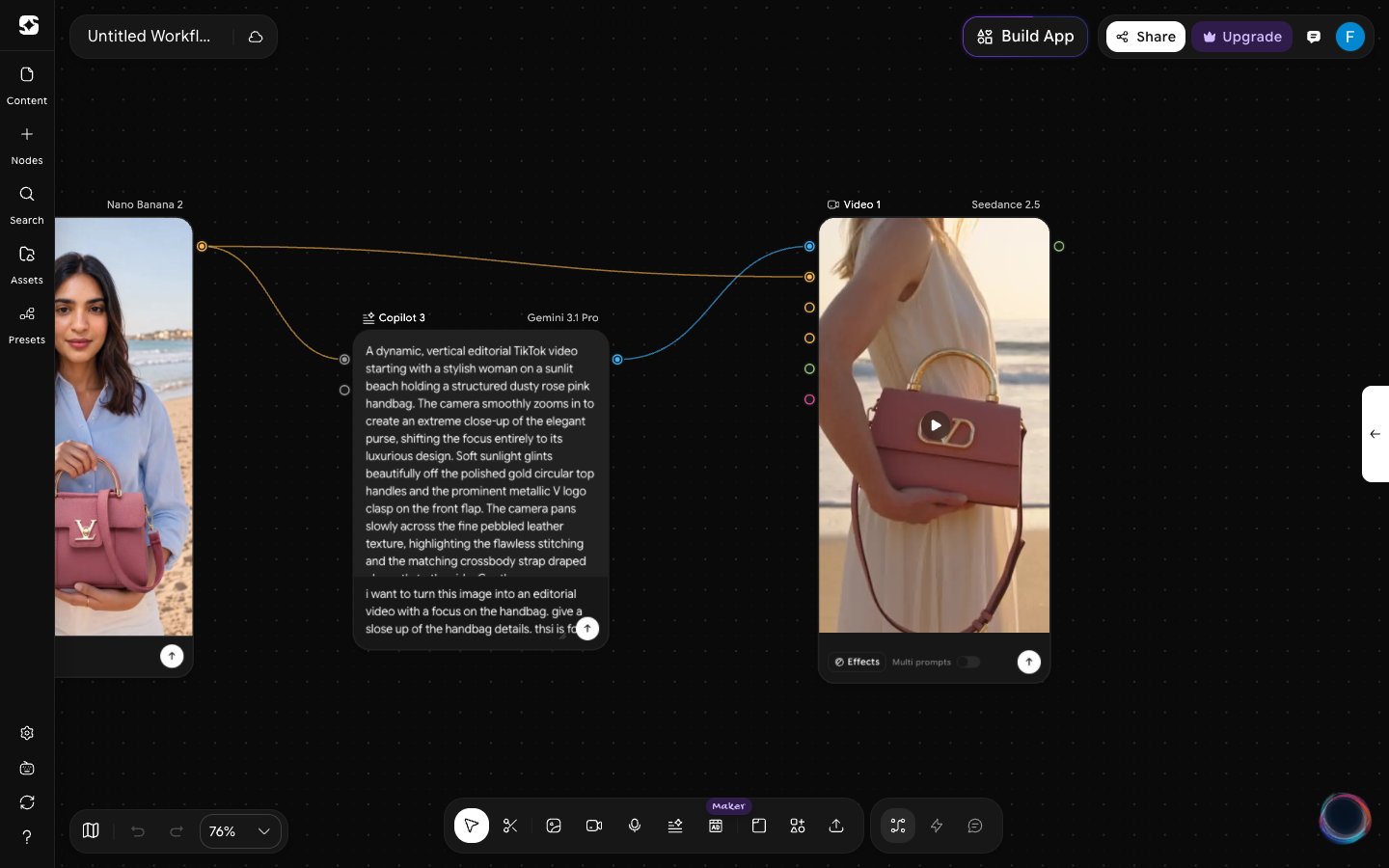
- On hovering the handle, a
"x"button appears to remove/delete it - Click to select it (Highlighted) and Press
DeleteorBackspace
Cut Connections with Scissors
The Remove edges tool (scissors icon) lets you sever node connections by dragging across them — useful for quickly cleaning up complex graphs without having to click each handle individually. To use the Scissors tool:1
Activate the Remove edges tool
Click the scissors icon in the bottom toolbar, or press 
K. The icon opens a small menu where you can switch between Remove edges and Connection (L).2
Draw across connections
Drag across any connections you want to remove. Every connection you cross is severed. Press 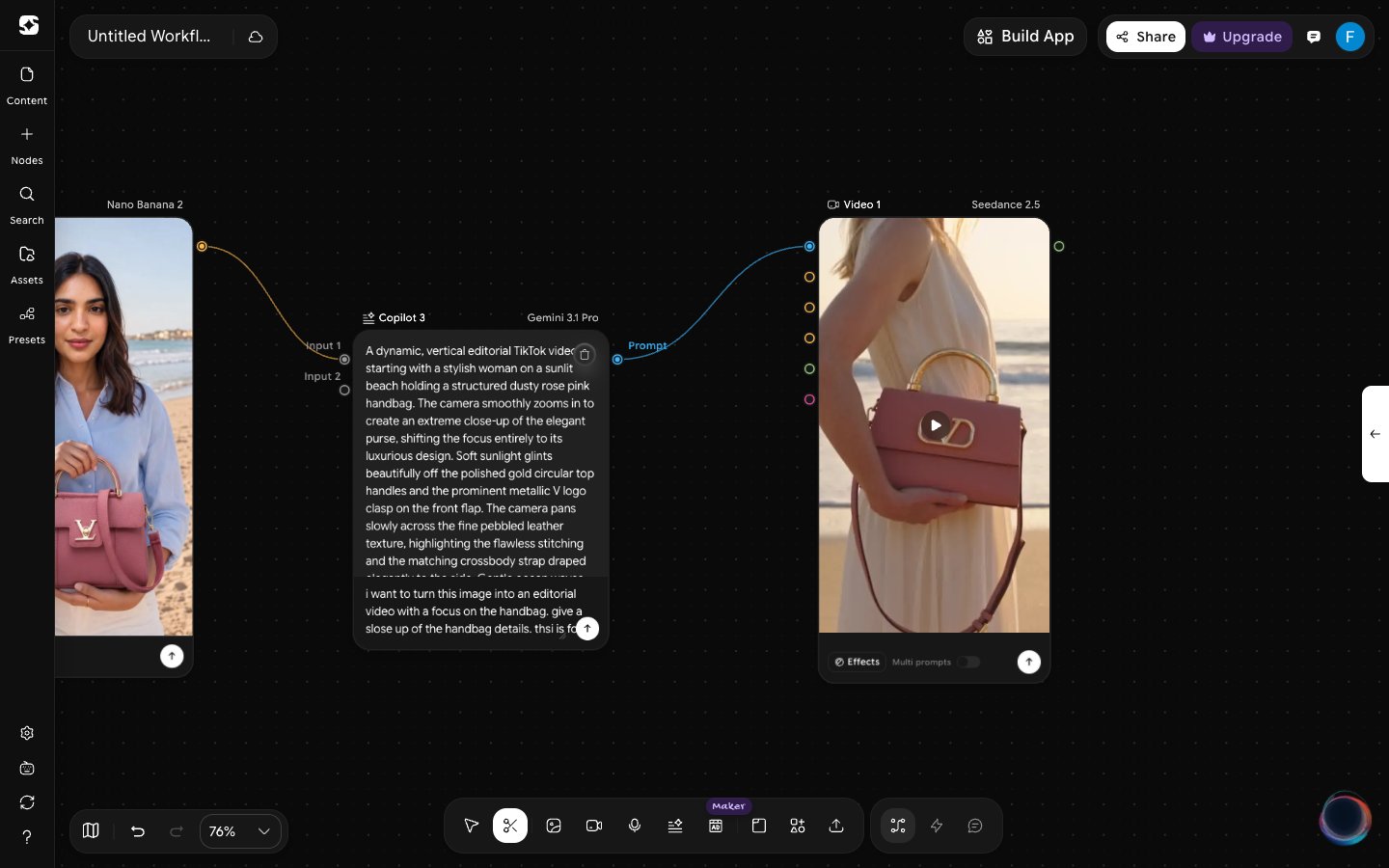
S to go back to the Select tool when you’re done.Canvas Navigation
Pan the canvas:- Hold
Spaceand drag - Scroll with the mouse wheel, drag with the middle mouse button, or use a two-finger drag on a trackpad
With the Select tool, clicking and dragging on empty space draws a selection box instead of panning.
- Hold
Ctrl/Cmdand scroll, or use the pinch gesture on a trackpad - Press
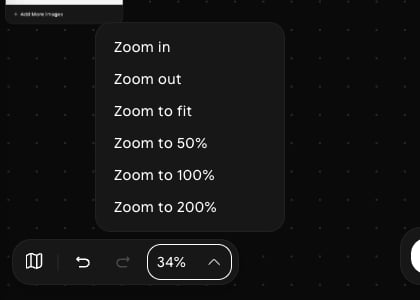
Ctrl/Cmd + PlusorCtrl/Cmd + Minus - Click the zoom percentage in the bottom-left corner to open the zoom menu: Zoom in, Zoom out, Zoom to fit, Zoom to 50%, Zoom to 100%, and Zoom to 200%
- Click the map icon next to the undo and redo buttons in the bottom-left corner to show or hide the Minimap
Left Sidebar
Bottom Toolbar
The group on the right switches between nodes, quick mode, and agent mode. The controls on the left show the Minimap, undo and redo, and the zoom menu.

Right Sidebar
Nodes Properties and Model Settings: When you select a node or multiple nodes, the right panel displays settings specific to your selection and the chosen model.