

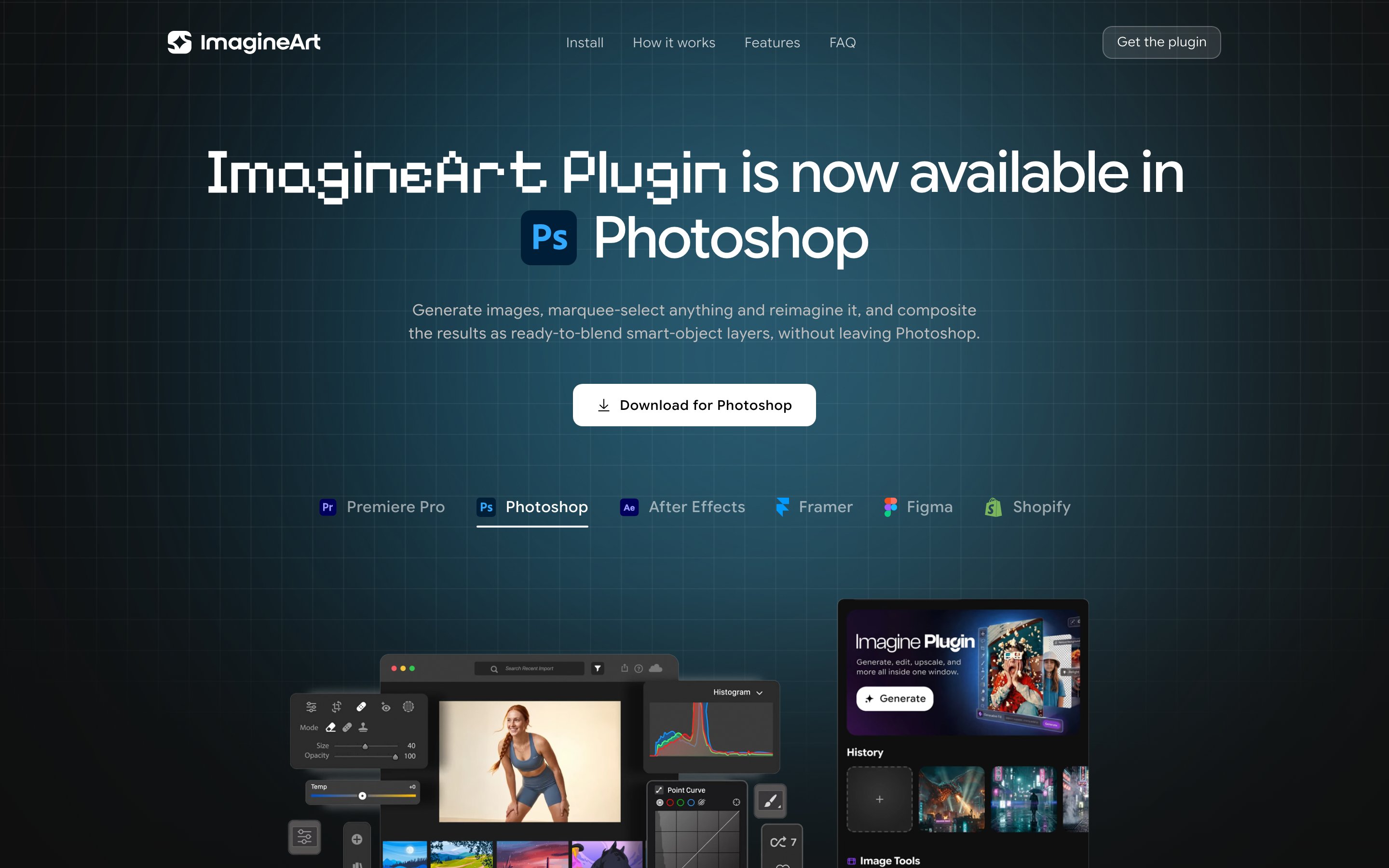
This plugin is in beta and installs directly from a downloaded file rather than the Creative Cloud Marketplace — Creative Cloud will show a note that it “doesn’t come from the Marketplace,” which is expected. The Marketplace listing is in review; once live, install and auto-update will move there instead.
Install
1
Download the plugin
Download
ImagineArt-Photoshop.ccx from the Photoshop plugin page. Keep it on the same drive Photoshop is installed on — Creative Cloud’s installer requires this.2
Double-click to install
Creative Cloud opens and installs it. Click Install past the “doesn’t come from the Marketplace” note. If macOS asks to let Creative Cloud access your folder, allow it.
Seeing “Error code -2” on macOS? Creative Cloud doesn’t have permission to read the folder the file is in. Either drag the
.ccx to your Desktop and double-click it there, or grant the permission once: System Settings → Privacy & Security → Full Disk Access → add Adobe Creative Cloud and toggle it on, then try again.3
Open the panel
In Photoshop, go to Plugins → ImagineArt Film Studio. Dock the panel and sign in once.
How the panel works
1
Pick a tool
Open the panel and choose what to make — image, upscale, remove background, or Generative Fill.
2
Describe your image
Type a prompt and set the model and aspect ratio. The panel shows the credit cost before you run anything.
3
Hit Create
The panel generates right where you’re docked — no browser tab, no round trip out of Photoshop.
4
Place it in Photoshop
One click brings the result in as its own smart-object layer, dropped straight into your working document.
5
Marquee anything and reimagine it
Select pixels in your document and the panel grabs them — describe a change, upscale, or cut the background, and the result returns as a ready-to-blend smart-object layer.
What you can do
FAQ
Creative Cloud says the plugin "doesn't come from the Marketplace" — is that okay?
Creative Cloud says the plugin "doesn't come from the Marketplace" — is that okay?
Yes, that’s expected for every plugin installed from a downloaded file, including this beta. Click Install to continue.
Double-clicking the .ccx does nothing.
Double-clicking the .ccx does nothing.
Make sure the Creative Cloud Desktop app is installed and running — it’s what performs the install. Also keep the
.ccx on the same drive Photoshop and Creative Cloud are installed on.Where do generated images end up?
Where do generated images end up?
Placed straight into your open document as a smart-object layer, ready to blend. If no document is open, the result opens as a new one.
The browser sign-in finished but the panel didn't connect.
The browser sign-in finished but the panel didn't connect.
Return to Photoshop and give it a moment — the panel picks up the session automatically. If it still doesn’t connect, copy the code shown after sign-in and paste it into the panel; it’s accepted as a manual fallback.
Do generations cost credits?
Do generations cost credits?
Generation, upscaling, and background removal use the same ImagineArt credits as the web app, and the panel shows the estimated cost next to each model and tool before you run anything.
Free with your ImagineArt account. Requires Photoshop 24.2+ and Creative Cloud, on macOS or Windows.