

1
Review the plan
After you describe what you want (e.g. in Deep Research mode), the agent proposes a numbered plan — its research angles, an analysis step, and a final write-up step — with an ETA.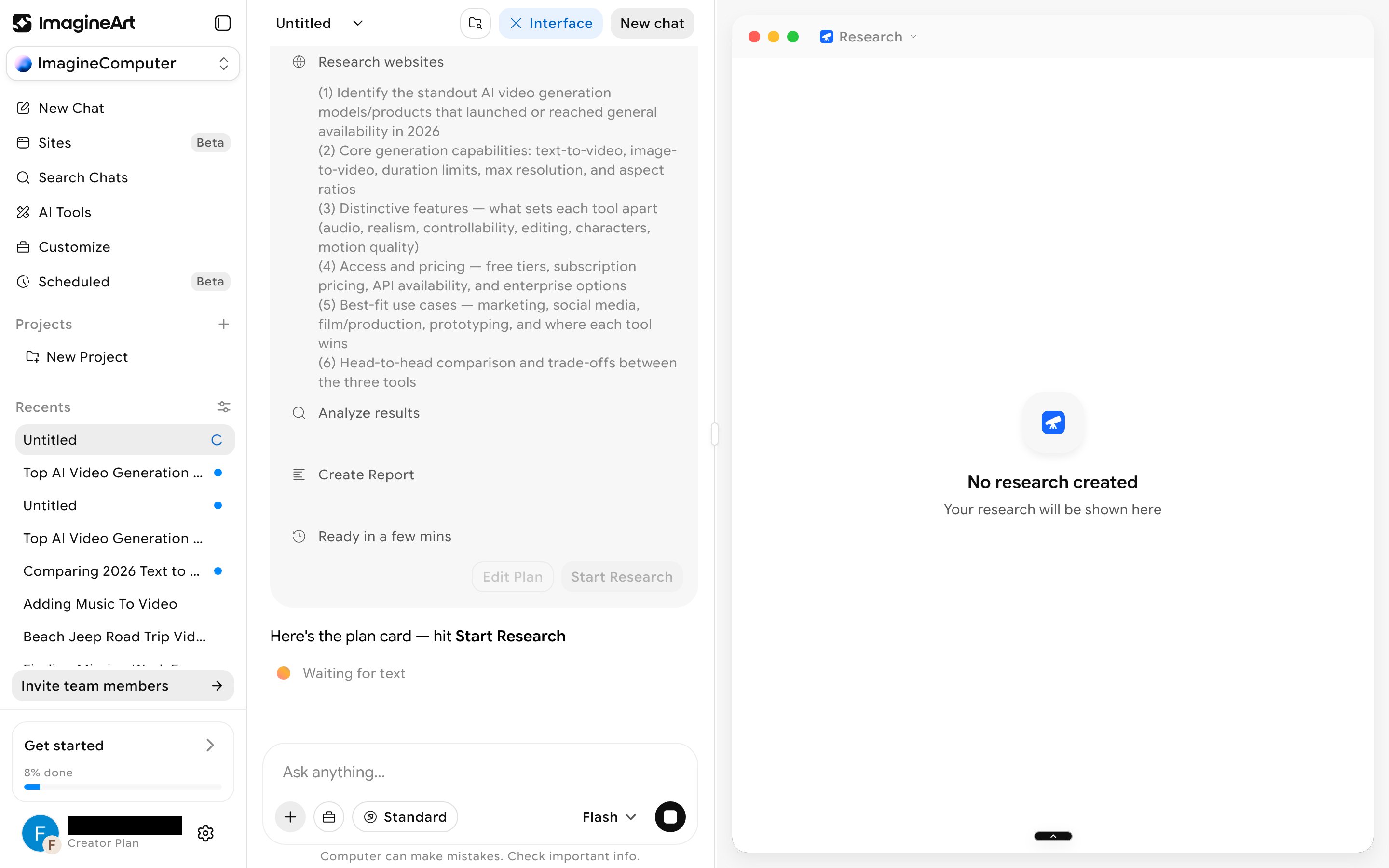
2
Start it and watch it work
Click Start Research. The view splits into two panes: your chat collapses to a short “Working…” status on the left, while the right-hand canvas streams a timestamped log — search angles, result counts, which sources it’s reading, and interim takeaways.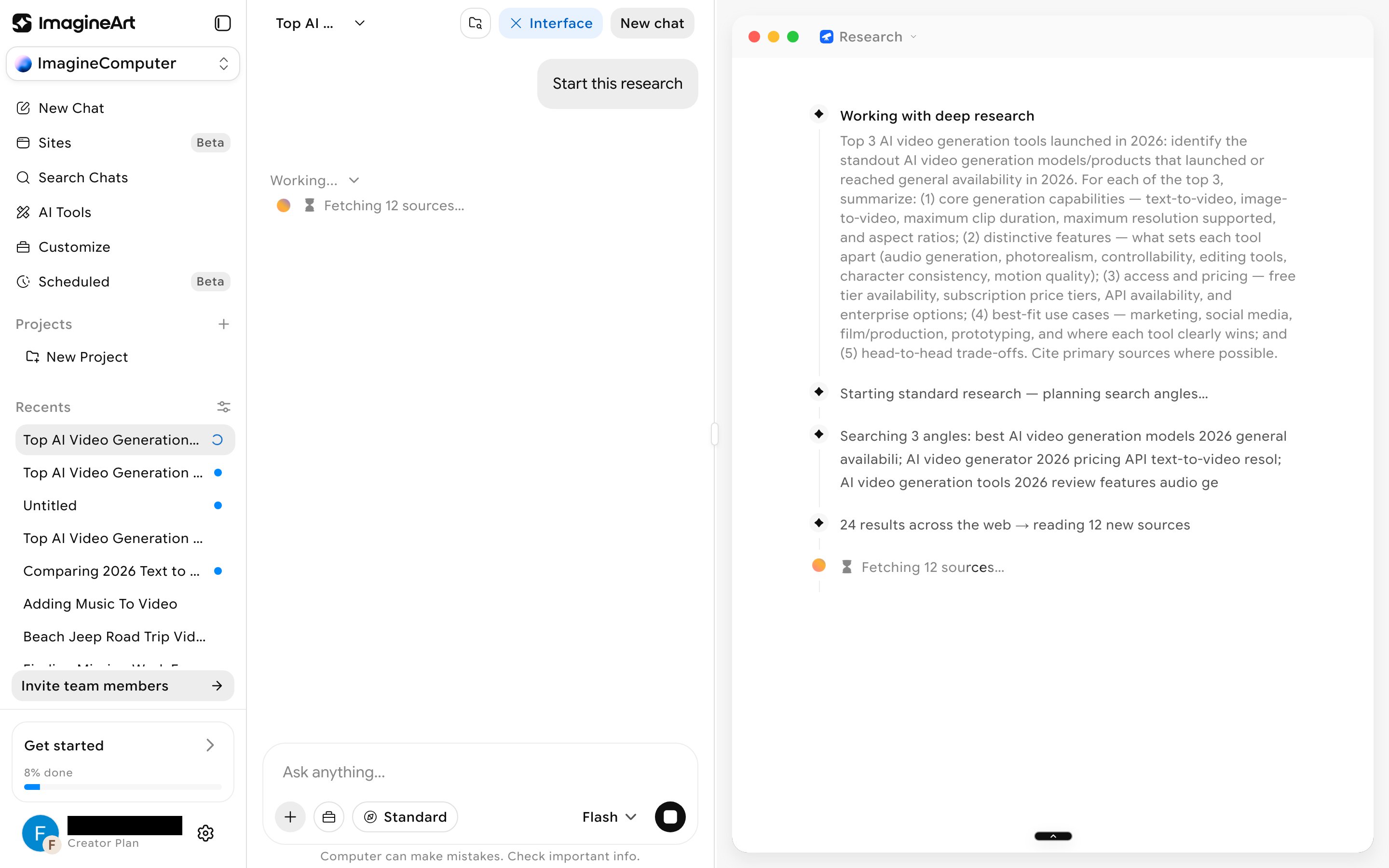
3
Get the finished document
Once research wraps up, the right pane switches into a Google-Docs-style editor titled after your topic, with Contents, Download, and Share controls and a live word count. It’s a fully editable rich-text document, not a read-only report — you can keep working in it directly.
A real failure mode to watch for
In testing, a task reported completion (“Done — the report is in your chat”) while the actual document contained only a Sources heading — the synthesized write-up itself was silently missing, despite the chat log showing sources had been read and a report was being written. Separately, the stated “4-5 minutes” estimate isn’t a reliable ceiling — a research run can still be mid-flight well past that.Run modes
There’s no separate run-mode pill on the chat prompt bar anymore. Two controls shape how a chat task runs:- Model tier: the dropdown next to the send button (Flash, Pro, or Ultra). See Model tier.
- Ask permission: a toggle in the + menu of the prompt box. Off (the default), the agent runs without stopping. On, it’s meant to ask before creating or editing artifacts. See Ask permission.
Startup modes
Startup, the website builder, has its own prompt bar with two different controls.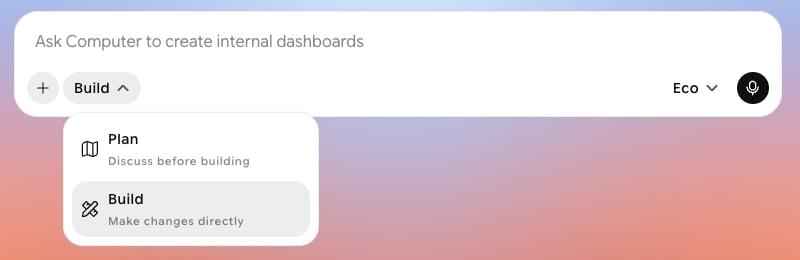
- Plan: discuss before building.
- Build: make changes directly.
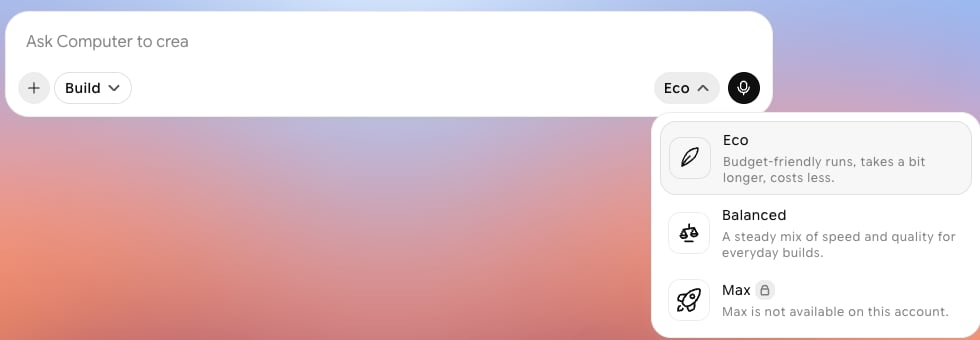
- Eco: budget-friendly runs that take a bit longer and cost less.
- Balanced: a steady mix of speed and quality for everyday builds.
- Max: not available on every account. On accounts without it, it shows a lock and “Max is not available on this account.”