The sidebar
1
Open Imagine Computer
Go to imagine.art/computer, or choose Computer from the workspace switcher at the top of the ImagineArt sidebar. You’ll land on the main chat view.
2
Orient yourself in the sidebar
- New Chat: start a fresh conversation.
- Search Chats: find a past conversation.
- Artifacts: a library of everything your chats have produced, filterable by Slides, Websites, Documents, Sheets, Images, and Audio & Video.
- Startup: the website builder. Describe a game, 2D or 3D site, or landing page and publish it.
- Integrations: connect your tools.
- Knowledge: your team’s files and data, which you can use in chats.
- Projects and Recents: your saved work and chat history.
Modes: presets on the same chat
The pills below the prompt box (Create Slides, Startup, AI Images, AI Sheets, AI Docs, and under More: Video Editor, AI Videos, AI Explainer, Graphs, AI Music, Deep Research, AI Resumes, Plan Trips, Motion Design, AI Contracts, Chat, AI Ads) mostly aren’t separate tools. Each one (other than Startup) is the same chat framework on its own sub-route, with a mode-specific composer hint and starter prompts. AI Images and AI Videos go further, with their own controls and template galleries. See Start from a preset.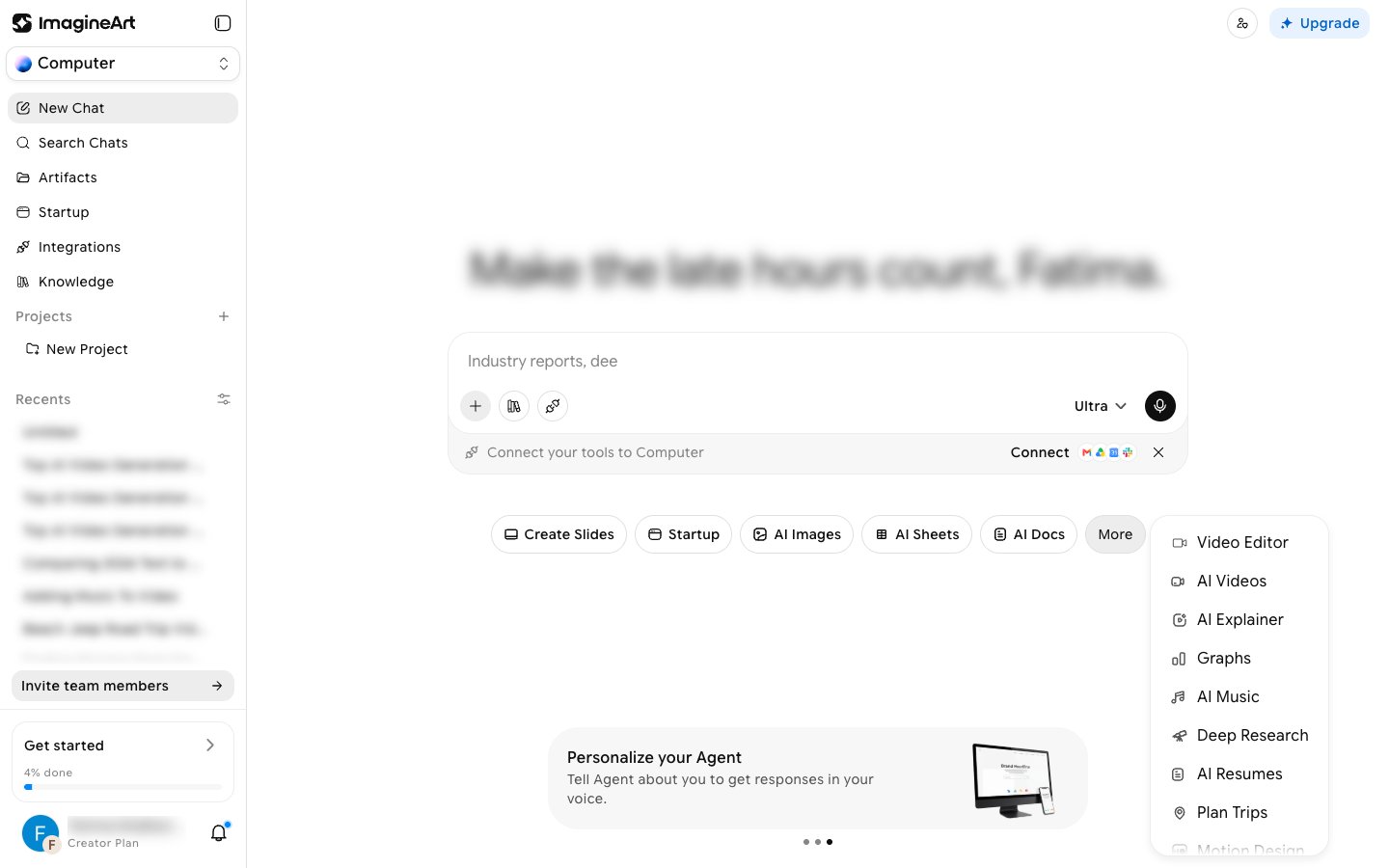
Startup is the exception. Clicking the Startup pill opens the separate website builder, with its own Build composer, rather than a chat preset.
Two controls that shape every task
Every prompt bar has two controls worth understanding before you run anything.Model tier
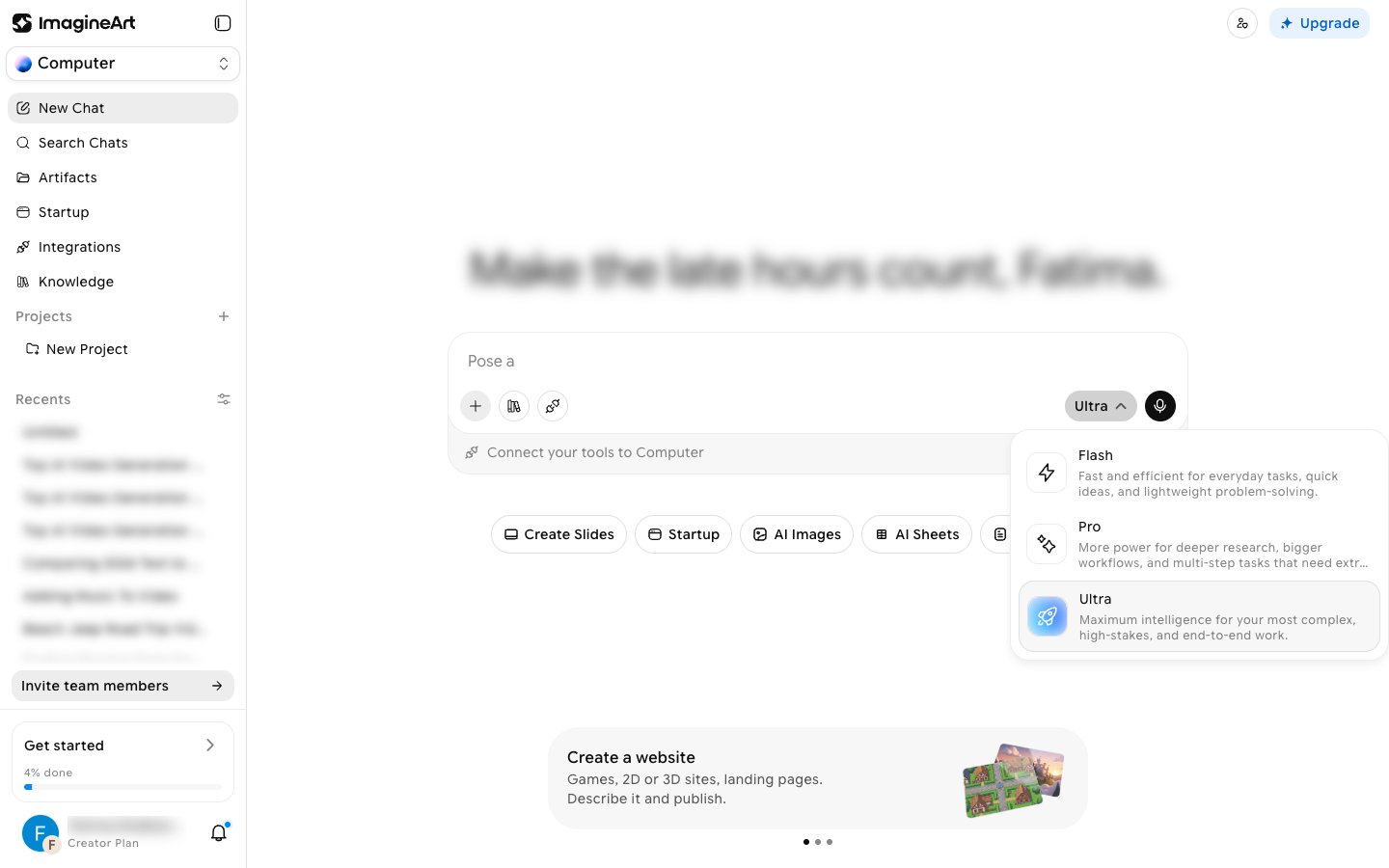
- Flash — fast and efficient for everyday tasks, quick ideas, and lightweight problem-solving.
- Pro — more power for deeper research, bigger workflows, and multi-step tasks that need extra capacity.
- Ultra — maximum intelligence for your most complex, high-stakes, end-to-end work.
Ask permission
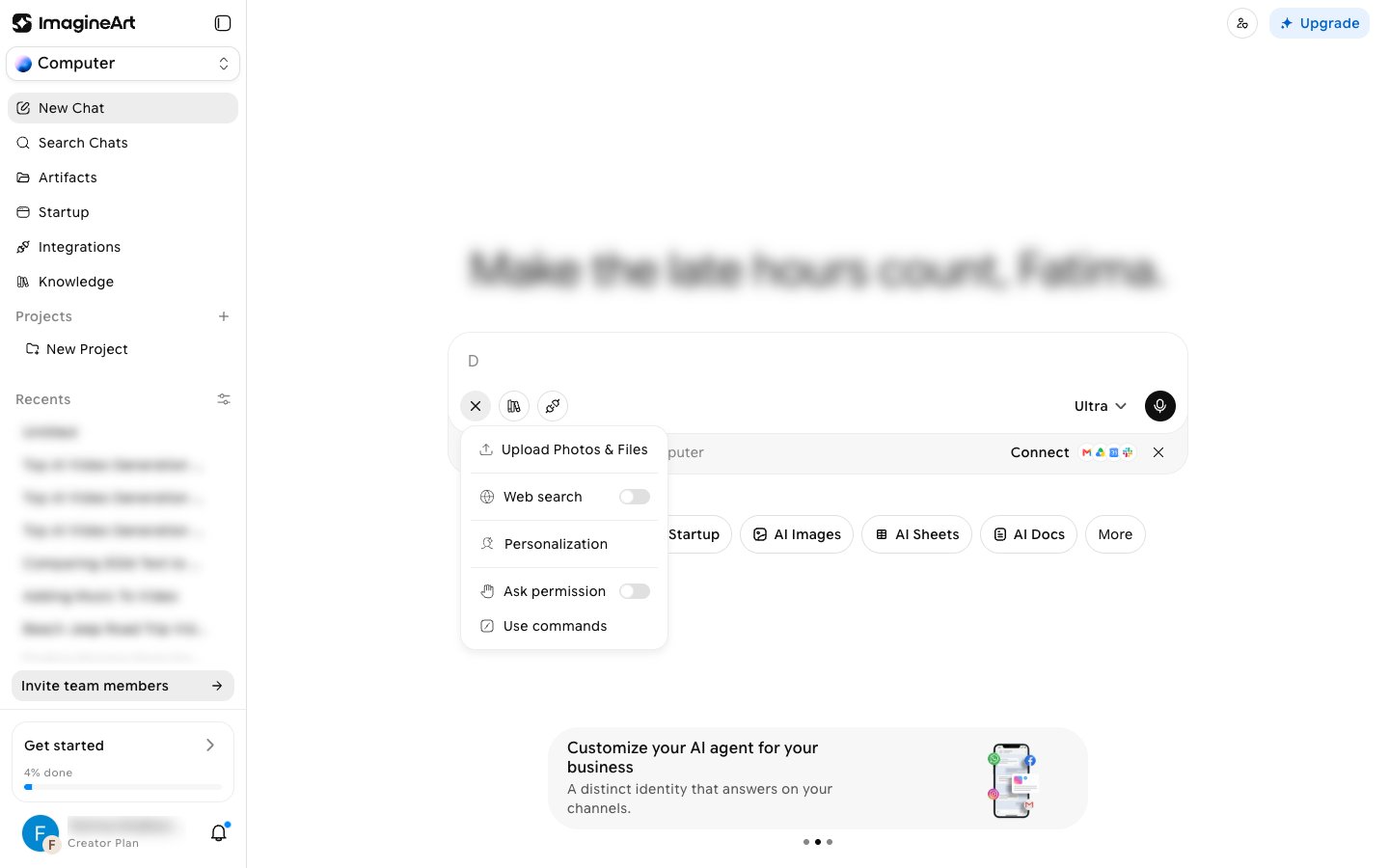
- Off (default): the agent runs without stopping, with full access to create, edit, or run intensive actions.
- On: the agent is meant to ask before creating or editing artifacts.
Start from a preset in AI Images and AI Videos
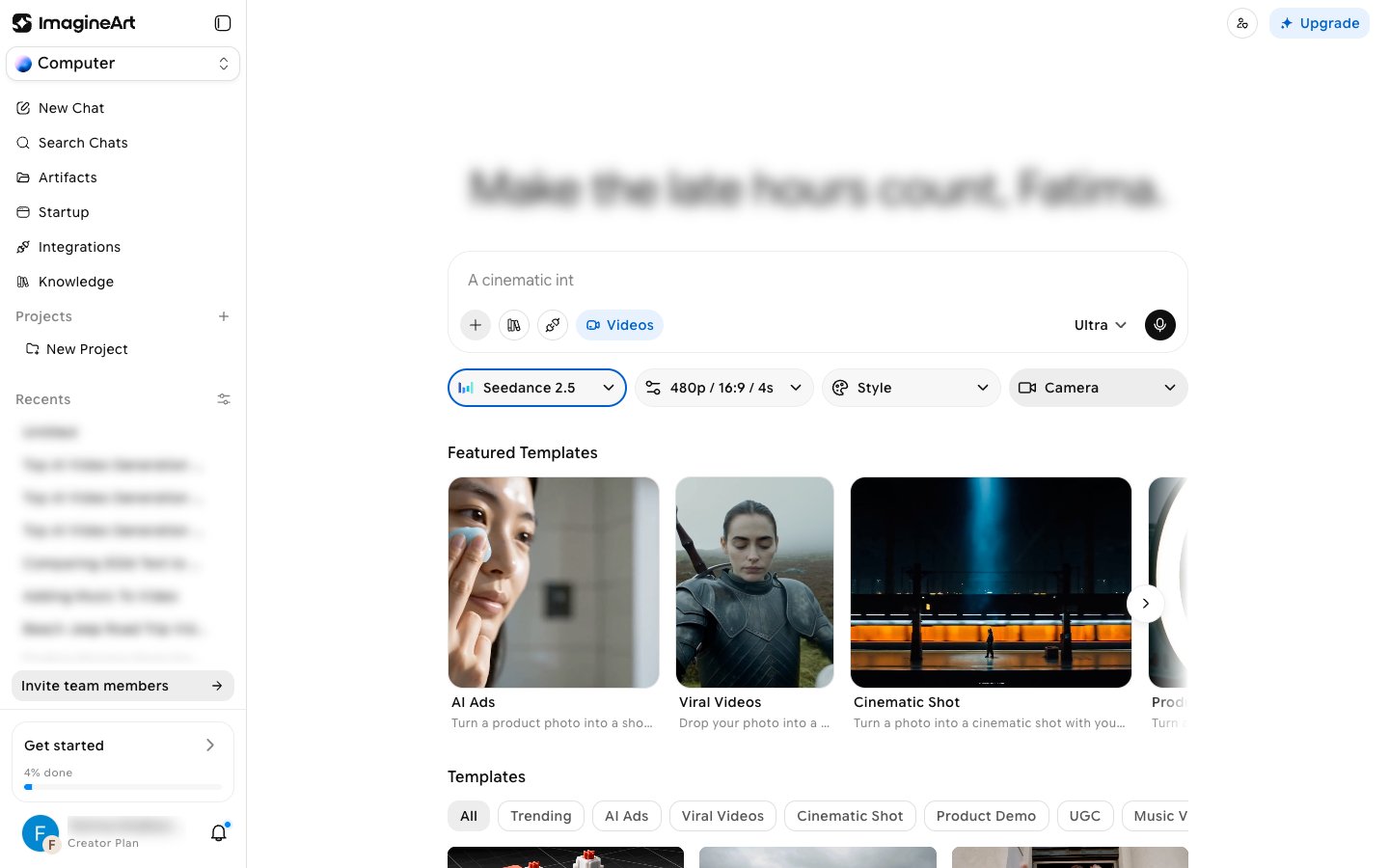
The AI Images and AI Videos homes let you start from a ready-made look instead of a blank prompt. Open them from the AI Images pill, or from More > AI Videos.1
Set up your generation
Below the prompt box, four dropdowns control the output: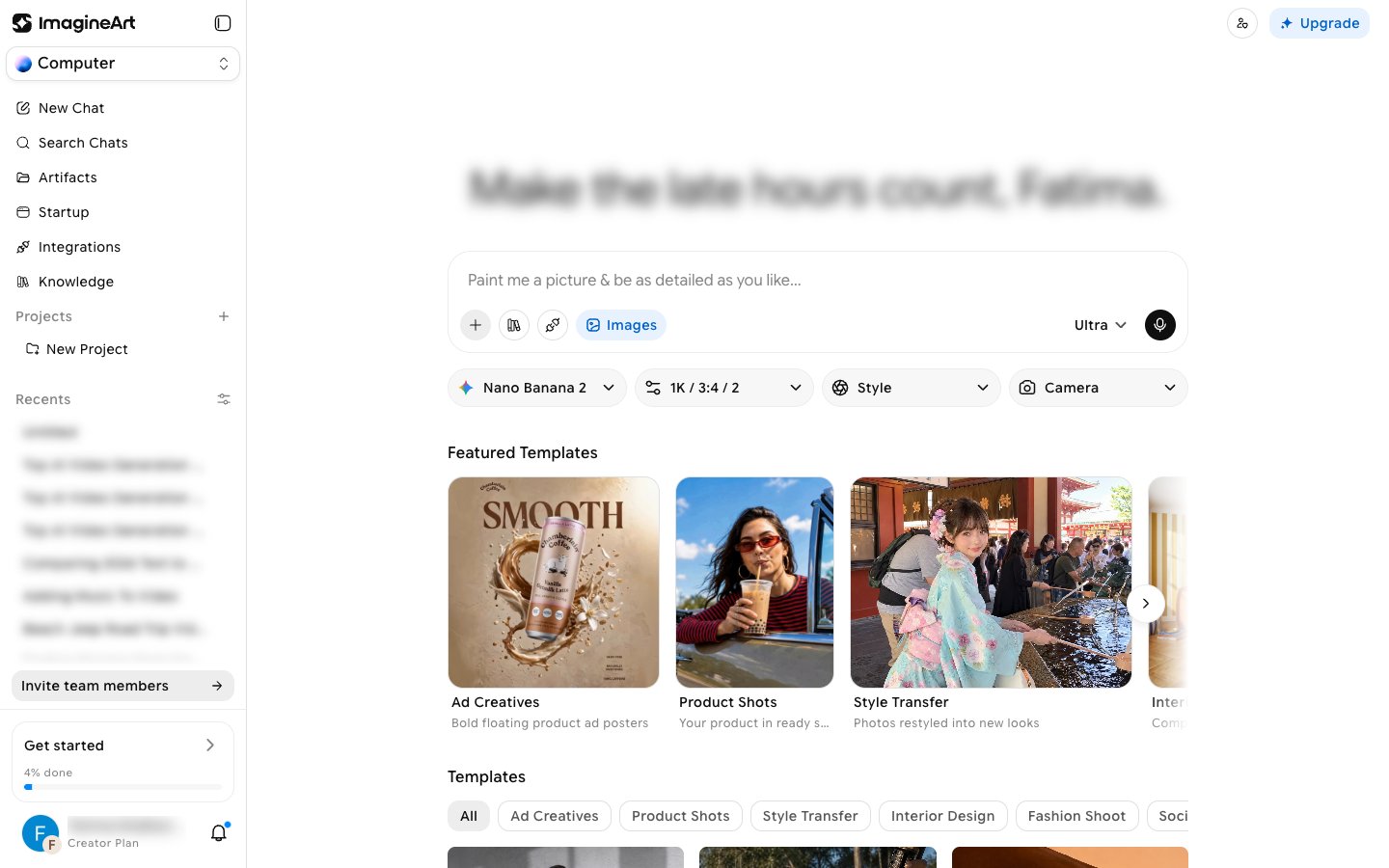
- Model: pick a model, or Auto in AI Images to let Computer choose.
- Settings: in AI Images, set Quality (1K, 2K, 4K), Aspect Ratio, and Variations (1, 2, or 4). In AI Videos, set Quality (480p, 720p, 1080p), Aspect Ratio, and Duration.
- Style: apply a visual preset. AI Images includes 20 styles, such as Photorealistic, Anime, Cinematic, Ghibli, Pixel Art, and Watercolor.
- Camera: choose a camera angle. AI Images offers Birdseye, Dutch, Low Hero, Medium, and Wide.
2
Pick a template
Browse Featured Templates, or filter the Templates gallery by category. Hover a template and click Use Template.
3
Add your input and create
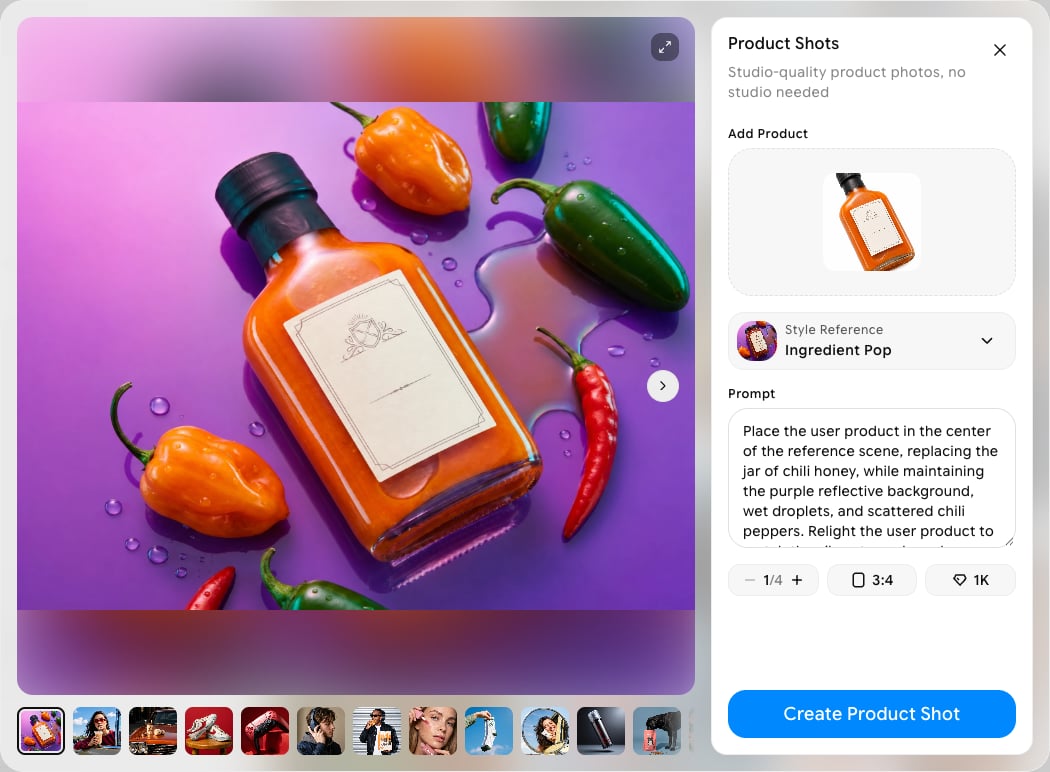
The template opens in its own window with example results, a prompt that’s already written for you, and the inputs it needs. For example, Product Shots asks you to Add Product, lets you change the Style Reference, and has controls for the number of images, aspect ratio, and quality. Edit the prompt if you like, then click the create button (for example, Create Product Shot).