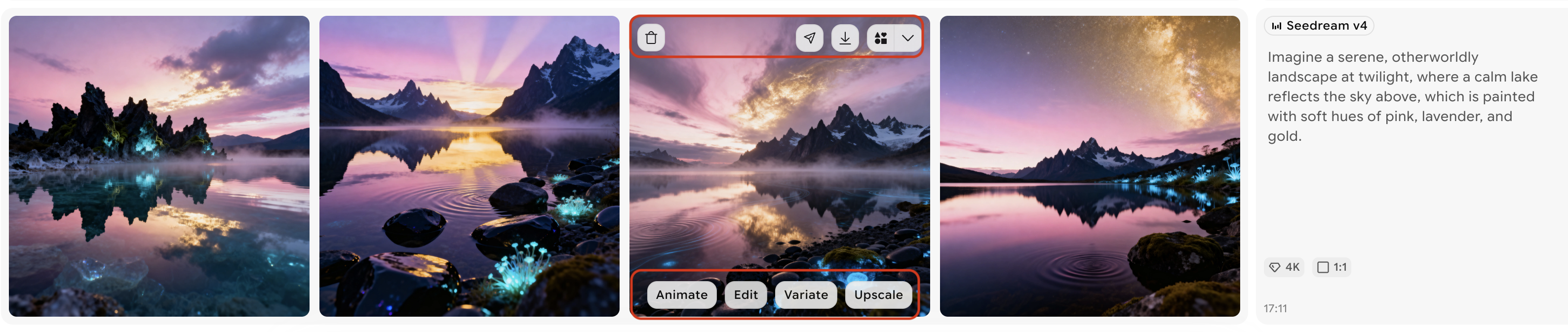
Animate, vary, edit, or upscale any generated image in one click with Quick Actions.
Quick Actions menu overlay on image gallery
What are Quick Actions?
Quick Actions are one-click tools that let you modify images instantly from your gallery without opening a separate editor. Hover over any image to reveal a shortcut menu with four key actions:
Animate – Add motion effects to bring your image to life
Variate – Generate multiple variations to explore different creative directions
Edit – Use text prompts to modify specific elements
Upscale – Enhance resolution and clarity for sharper, higher-quality output
Quick Actions toolbar visible on hover
How to Use Quick Actions
1
Hover over your image
Navigate to your home view where generated images are displayed. Hover over any image to reveal the Quick Actions options: Animate, Variate, Edit, and Upscale.
2
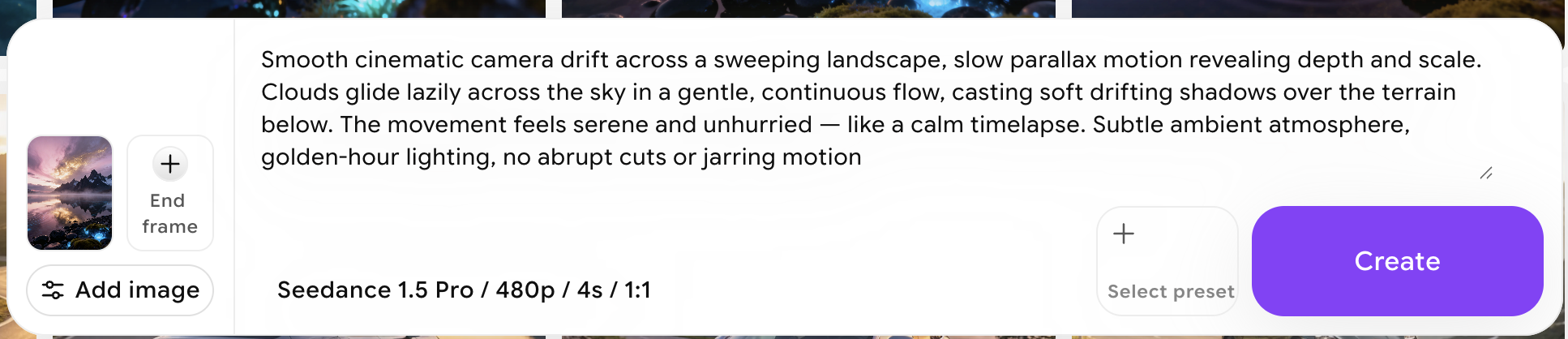
Animate – Add motion effects
Transform your image into a dynamic visual with motion effects.
Click Animate – your image automatically becomes the animation reference
Add a text prompt to customize the motion level
Click Create to generate your animated result
Animate action with motion prompt input
3
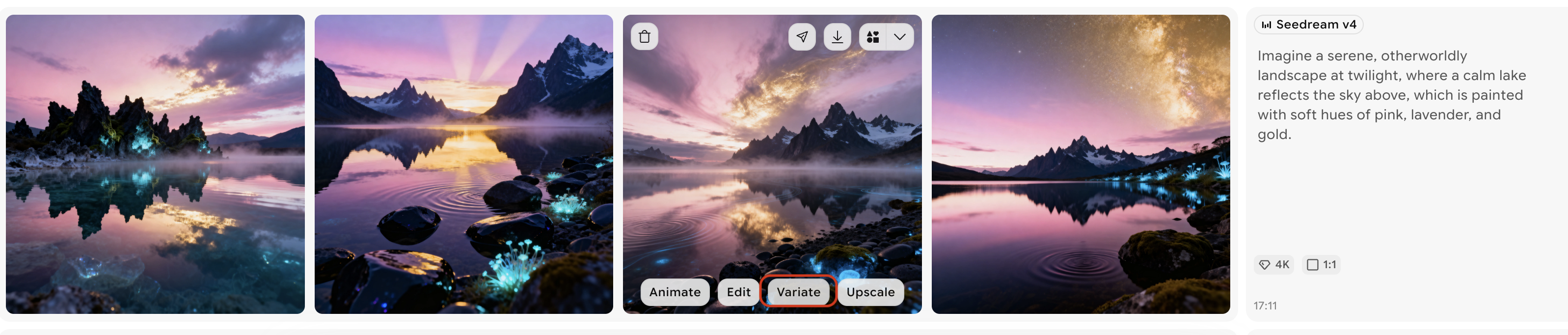
Variate – Explore multiple versions
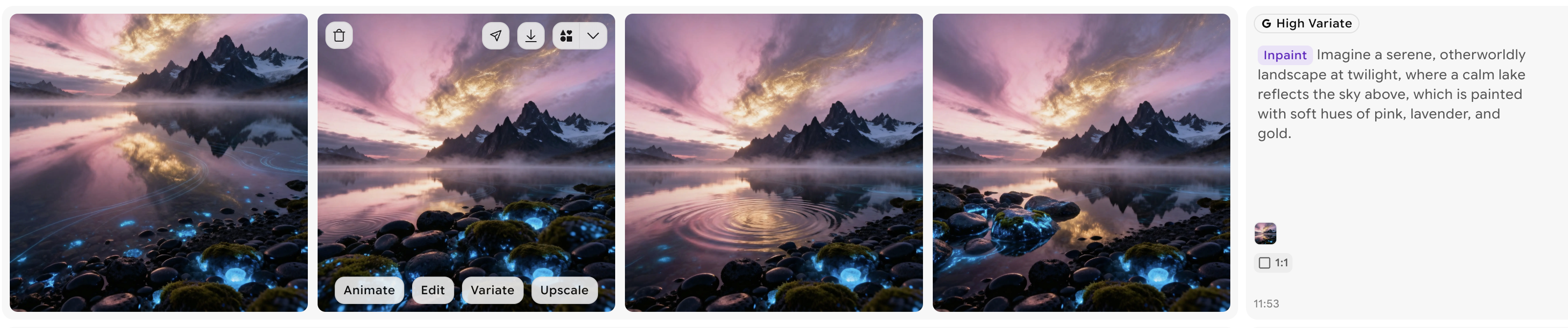
Generate 4 instant variations of your image to explore different creative options.
Click Variate – processing begins immediately
Review the generated variations
Select your preferred version or use it as a new starting point
Variate generation in progress
Completed variations ready to use
4
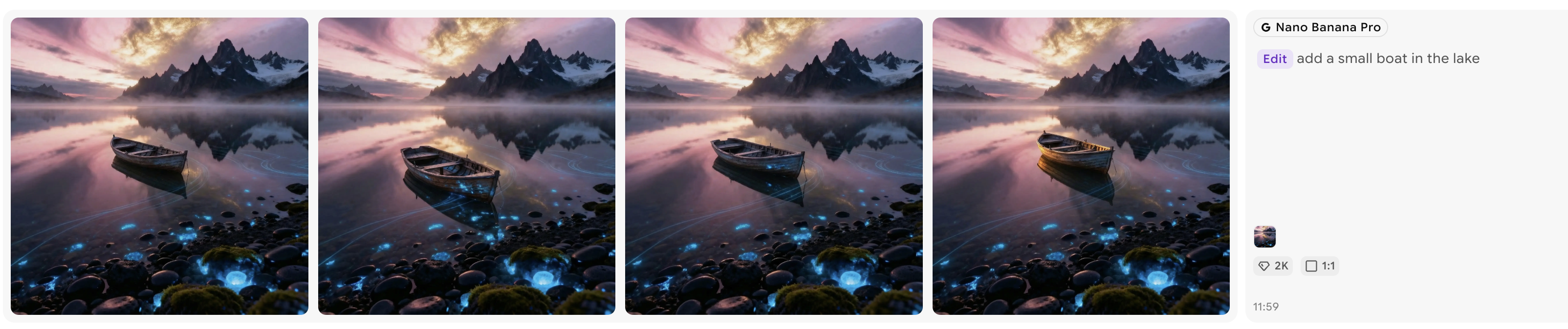
Edit – Make targeted changes
Use text prompts to make specific edits like changing colors, adding elements, or adjusting composition.
Click Edit – your image becomes the reference
Enter a text prompt describing your desired changes
Click Create to apply the edits
Edit interface with text prompt input
Edited image result
5
Upscale – Enhance resolution
Increase image resolution and clarity for sharper details and finer textures. Cost depends on input image size.
Upscale enhancement example
Best Practices
Use Variate to explore ideas – Instantly generate multiple directions without starting from scratch
Use Animate for visual impact – Create engaging motion effects for social media and visual projects
Use Edit for precision – Make targeted adjustments to specific elements, backgrounds, or compositions