> ## Documentation Index
> Fetch the complete documentation index at: https://docs.imagine.art/llms.txt
> Use this file to discover all available pages before exploring further.
# ImagineArt Teams
> Share a single subscription and credit pool with your collaborators using ImagineArt Teams.
ImagineArt Teams lets you consolidate your creative workflow by sharing a **single subscription** and **credit pool** across multiple accounts. It's built for agencies, studios, classrooms, and creator groups who need centralized billing and shared resources.
Every team member logs in with their own individual ImagineArt account. Teams simply connects those accounts under one shared plan and credit balance.
## How Teams work
The **Team Owner** creates the team through their account. The owner controls billing, owns all invoices, and is the only person who can change the plan or purchase top-ups.
The owner sends invitations to collaborators. Each plan sets a maximum number of seats — including the owner's seat — so you can only add members up to that limit. Members join via an invite link and use their own ImagineArt login.
The team has a **single shared credit pool**. Any member — owner or otherwise — can spend credits from it. All plan credits and any top-ups purchased by the owner go into this same pool.
If the team runs low on credits, only the owner can buy top-ups or upgrade the plan. Members have no access to billing controls.
## Roles and permissions
| | Team Owner | Team Member |
| - | - | - |
| Creates the team | ✓ | — |
| Invites and removes members | ✓ | — |
| Upgrades or downgrades the plan | ✓ | — |
| Purchases credit top-ups | ✓ | — |
| Owns invoices and billing details | ✓ | — |
| Uses shared credits to generate content | ✓ | ✓ |
| Accesses plan features | ✓ | ✓ |
## Seats (member limits) by plan
Your plan determines the maximum number of people who can be in your team, including the owner.
| Plan | Maximum seats (including owner) |
| - | - |
| Standard | 3 |
| Ultimate | 6 |
| Creator | 20 |
Seat counts and pricing can change. Always confirm the current limits on the [Subscription page](https://www.imagine.art/subscription) and the [Teams plan page](https://www.imagine.art/teams-plan) before purchasing.
If you need more seats, upgrade to a higher plan. If you downgrade, you'll need to remove members until your team size falls within the new plan's limit.
## Multiple teams per account
You can belong to more than one team at the same time. Each team operates as a completely isolated workspace with its own subscription and credit pool.
**Example:** You can be the owner of one team for your studio while also being a member of a client's separate team. Those two teams have entirely separate subscriptions and credit balances — activity in one does not affect the other.
## Switch teams
Across the platform, use the **team dropdown** in the top-right corner to move to another team.
### Switch teams from the Workflow editor
You can also change teams while a workflow is open, without going back to the dashboard first.
In the Workflow editor, click your **profile picture** in the top-right corner, then hover over **Switch Team**. The **Switch teams** list shows every team you belong to and your role in each (**Owner** or **Member**). Team owners also see an **Invite** button next to their team.
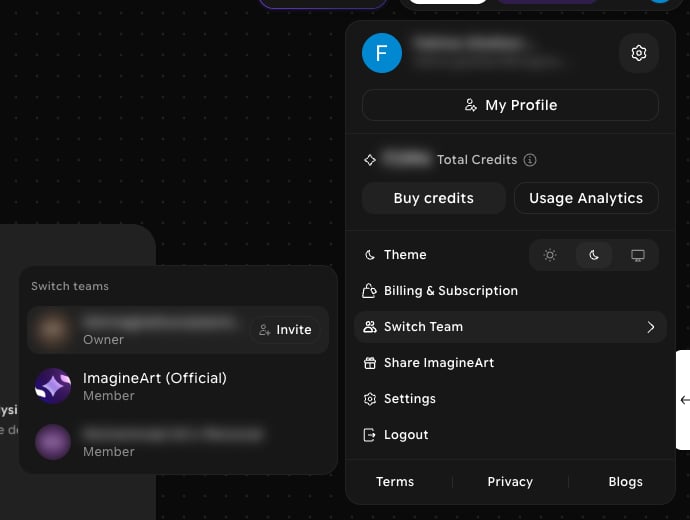 Click the team you want to switch to. A **Switch Team?** confirmation appears, naming the team the open workflow belongs to. Click **Switch Team** to continue, or **Cancel** to stay in your current team.
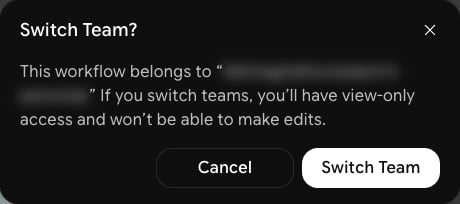 A workflow belongs to the team it was created in. If you switch to a different team while it's open, you'll have view-only access to that workflow and won't be able to make edits.
## Frequently asked questions
No. Only the Team Owner manages billing. Members have no visibility into or control over payment methods, invoices, or plan changes.
Generation stops for all members until credits are replenished. The owner can buy a top-up to add credits to the shared pool immediately, or upgrade the plan for a larger monthly allocation.
Yes. If you belong to multiple teams, you can switch between them using the team dropdown in the top-right corner of the platform, or from **Switch Team** in your profile menu inside the Workflow editor. Each team's credits and settings are completely separate. See [Switch teams](#switch-teams).
Ownership is tied to the account that created the team and holds the billing relationship. If you need to transfer ownership or restructure your team, contact [support@imagine.art](mailto:support@imagine.art).
The team's shared subscription ends along with the owner's plan. Members lose access to plan features and the shared credit pool until the owner renews or the team is re-established under an active subscription.
Yes. You can create and own multiple teams from a single account. Each team has its own billing, seat limit, and shared credit pool.
Need help with Teams setup or billing? Email [support@imagine.art](mailto:support@imagine.art).
***
* [Creating & Joining Teams](/overview/teams/create-and-join)
* [Credits & Billing](/overview/teams/credits)
* [Folder Sharing](/overview/teams/sharing)
This documentation is built and hosted on [Mintlify](https://mintlify.com), a developer documentation platform.
A workflow belongs to the team it was created in. If you switch to a different team while it's open, you'll have view-only access to that workflow and won't be able to make edits.
## Frequently asked questions
No. Only the Team Owner manages billing. Members have no visibility into or control over payment methods, invoices, or plan changes.
Generation stops for all members until credits are replenished. The owner can buy a top-up to add credits to the shared pool immediately, or upgrade the plan for a larger monthly allocation.
Yes. If you belong to multiple teams, you can switch between them using the team dropdown in the top-right corner of the platform, or from **Switch Team** in your profile menu inside the Workflow editor. Each team's credits and settings are completely separate. See [Switch teams](#switch-teams).
Ownership is tied to the account that created the team and holds the billing relationship. If you need to transfer ownership or restructure your team, contact [support@imagine.art](mailto:support@imagine.art).
The team's shared subscription ends along with the owner's plan. Members lose access to plan features and the shared credit pool until the owner renews or the team is re-established under an active subscription.
Yes. You can create and own multiple teams from a single account. Each team has its own billing, seat limit, and shared credit pool.
Need help with Teams setup or billing? Email [support@imagine.art](mailto:support@imagine.art).
***
* [Creating & Joining Teams](/overview/teams/create-and-join)
* [Credits & Billing](/overview/teams/credits)
* [Folder Sharing](/overview/teams/sharing)
This documentation is built and hosted on [Mintlify](https://mintlify.com), a developer documentation platform.