> ## Documentation Index
> Fetch the complete documentation index at: https://docs.imagine.art/llms.txt
> Use this file to discover all available pages before exploring further.
# Running a Task
> From a goal to a plan to a finished document — how an agent task actually runs, and one real failure mode to watch for.
Submitting a prompt doesn't generate an answer directly — it produces a plan you review first, then a live-running task you can watch.
After you describe what you want (e.g. in **Deep Research** mode), the agent proposes a numbered plan — its research angles, an analysis step, and a final write-up step — with an ETA.
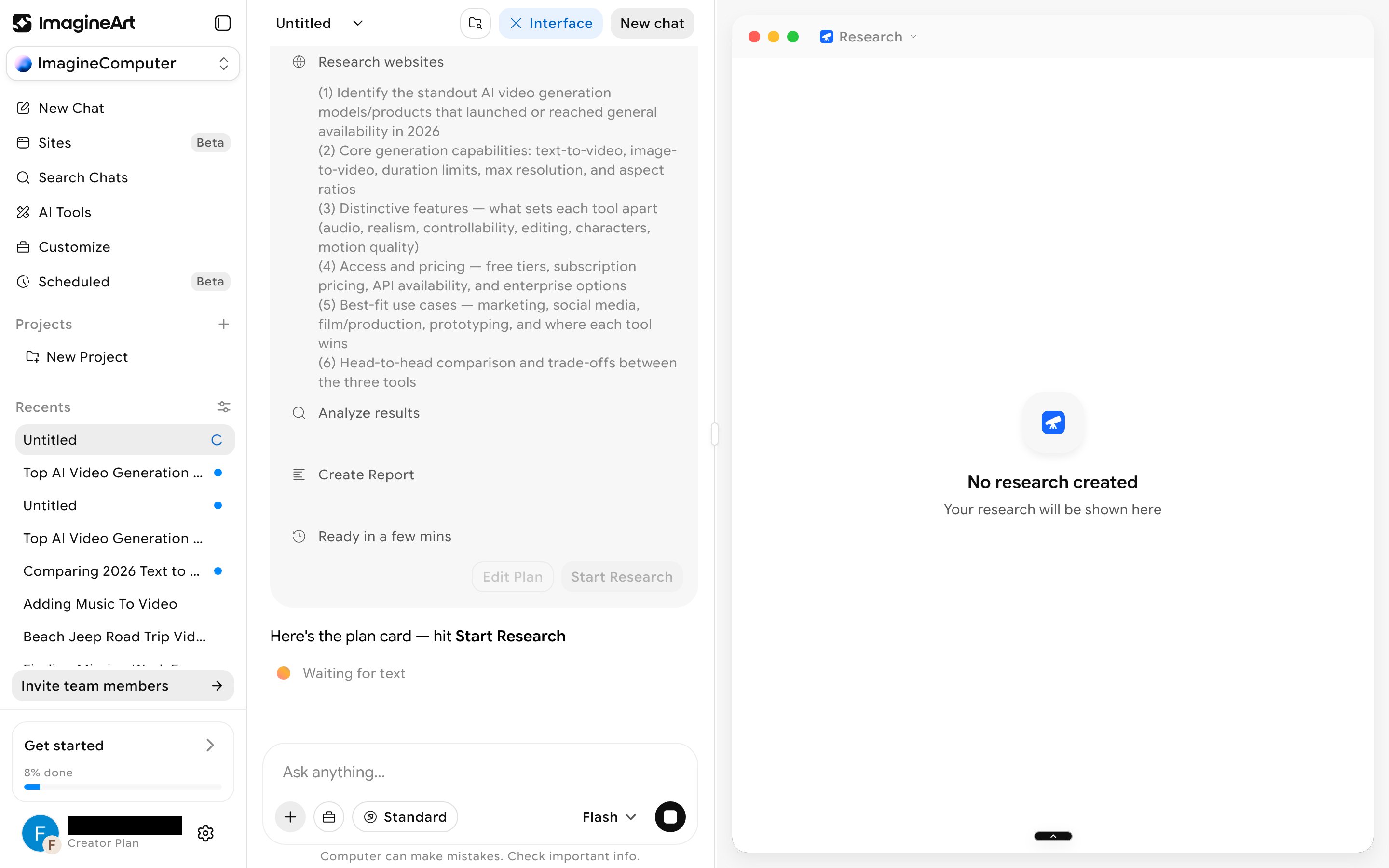 There's no drag-and-drop plan editor. Click **Edit Plan** and describe what you want changed in plain language (different ranking criteria, a dropped angle, an added axis) — the agent replies conversationally and regenerates the whole plan.
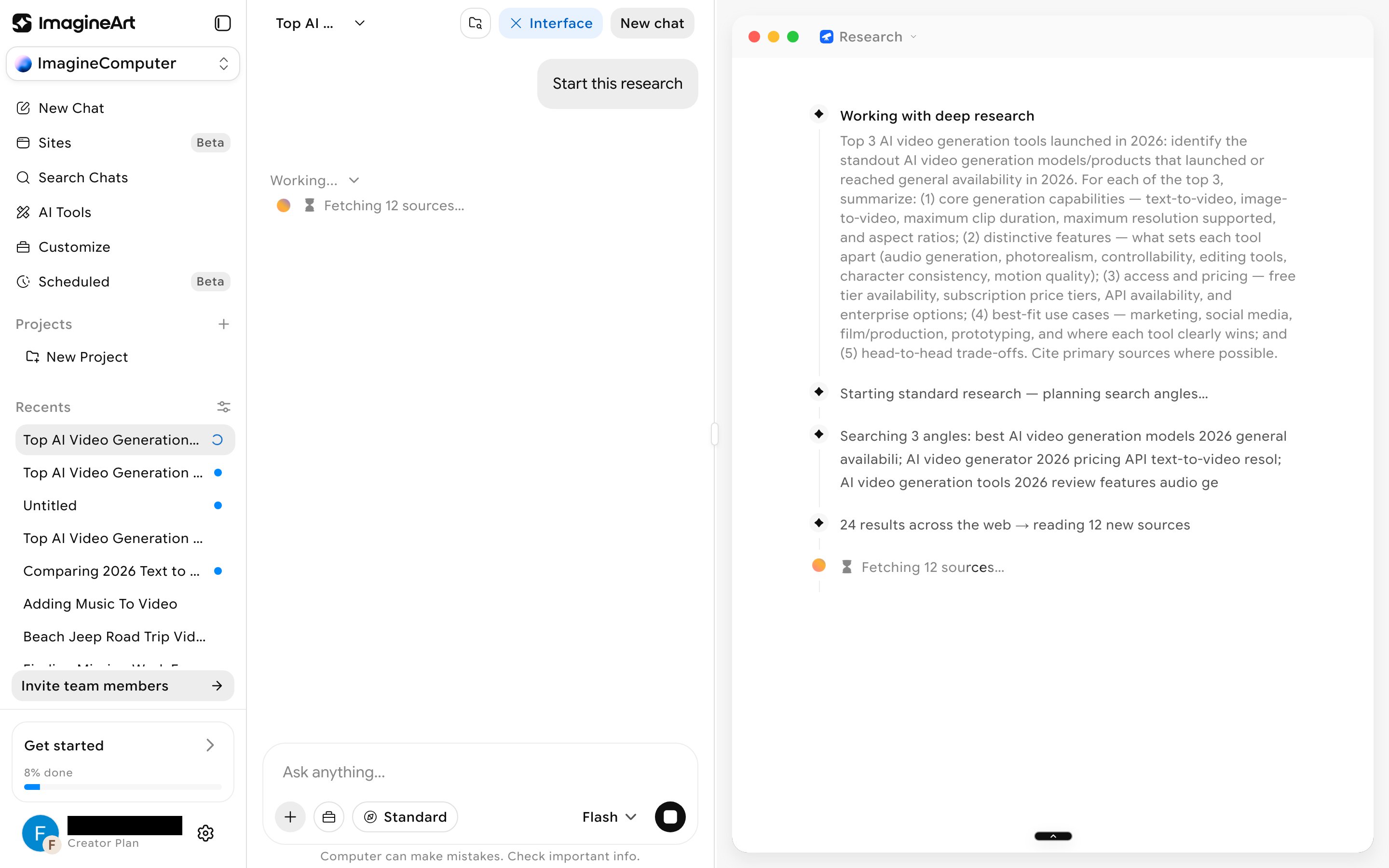
Click **Start Research**. The view splits into two panes: your chat collapses to a short "Working…" status on the left, while the right-hand canvas streams a timestamped log — search angles, result counts, which sources it's reading, and interim takeaways.
There's no drag-and-drop plan editor. Click **Edit Plan** and describe what you want changed in plain language (different ranking criteria, a dropped angle, an added axis) — the agent replies conversationally and regenerates the whole plan.
Click **Start Research**. The view splits into two panes: your chat collapses to a short "Working…" status on the left, while the right-hand canvas streams a timestamped log — search angles, result counts, which sources it's reading, and interim takeaways.
 Once research wraps up, the right pane switches into a Google-Docs-style editor titled after your topic, with **Contents**, **Download**, and **Share** controls and a live word count. It's a fully editable rich-text document, not a read-only report — you can keep working in it directly.
## A real failure mode to watch for
In testing, a task reported completion ("Done — the report is in your chat") while the actual document contained only a **Sources** heading — the synthesized write-up itself was silently missing, despite the chat log showing sources had been read and a report was being written. Separately, the stated "4-5 minutes" estimate isn't a reliable ceiling — a research run can still be mid-flight well past that.
Always open and check the actual document before trusting a "Done" status or relying on it for anything time-sensitive. A completed status is not proof the content is actually there.
## Run modes
There's no separate run-mode pill on the chat prompt bar anymore. Two controls shape how a chat task runs:
* **Model tier**: the dropdown next to the send button (**Flash**, **Pro**, or **Ultra**). See [Model tier](/imagine-computer/getting-started#model-tier).
* **Ask permission**: a toggle in the **+** menu of the prompt box. Off (the default), the agent runs without stopping. On, it's meant to ask before creating or editing artifacts. See [Ask permission](/imagine-computer/getting-started#ask-permission).
In earlier testing, the approval setting did not actually pause a full research run at any point, including at the report-writing step. Treat every run as if it will continue without stopping.
### Startup modes
**Startup**, the website builder, has its own prompt bar with two different controls.
Once research wraps up, the right pane switches into a Google-Docs-style editor titled after your topic, with **Contents**, **Download**, and **Share** controls and a live word count. It's a fully editable rich-text document, not a read-only report — you can keep working in it directly.
## A real failure mode to watch for
In testing, a task reported completion ("Done — the report is in your chat") while the actual document contained only a **Sources** heading — the synthesized write-up itself was silently missing, despite the chat log showing sources had been read and a report was being written. Separately, the stated "4-5 minutes" estimate isn't a reliable ceiling — a research run can still be mid-flight well past that.
Always open and check the actual document before trusting a "Done" status or relying on it for anything time-sensitive. A completed status is not proof the content is actually there.
## Run modes
There's no separate run-mode pill on the chat prompt bar anymore. Two controls shape how a chat task runs:
* **Model tier**: the dropdown next to the send button (**Flash**, **Pro**, or **Ultra**). See [Model tier](/imagine-computer/getting-started#model-tier).
* **Ask permission**: a toggle in the **+** menu of the prompt box. Off (the default), the agent runs without stopping. On, it's meant to ask before creating or editing artifacts. See [Ask permission](/imagine-computer/getting-started#ask-permission).
In earlier testing, the approval setting did not actually pause a full research run at any point, including at the report-writing step. Treat every run as if it will continue without stopping.
### Startup modes
**Startup**, the website builder, has its own prompt bar with two different controls.
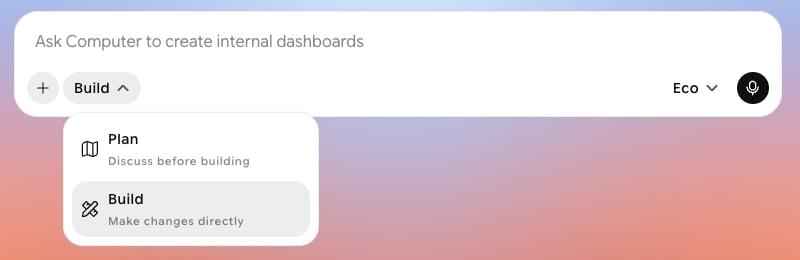 * **Plan**: discuss before building.
* **Build**: make changes directly.
* **Plan**: discuss before building.
* **Build**: make changes directly.
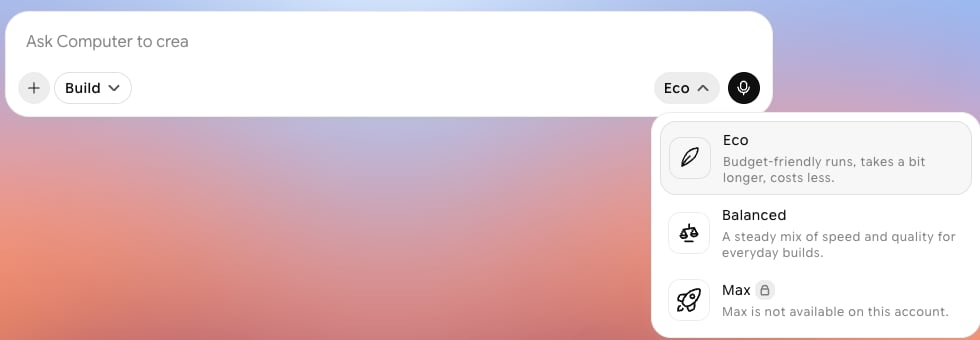 * **Eco**: budget-friendly runs that take a bit longer and cost less.
* **Balanced**: a steady mix of speed and quality for everyday builds.
* **Max**: not available on every account. On accounts without it, it shows a lock and "Max is not available on this account."
This documentation is built and hosted on [Mintlify](https://mintlify.com), a developer documentation platform.
* **Eco**: budget-friendly runs that take a bit longer and cost less.
* **Balanced**: a steady mix of speed and quality for everyday builds.
* **Max**: not available on every account. On accounts without it, it shows a lock and "Max is not available on this account."
This documentation is built and hosted on [Mintlify](https://mintlify.com), a developer documentation platform.