> ## Documentation Index
> Fetch the complete documentation index at: https://docs.imagine.art/llms.txt
> Use this file to discover all available pages before exploring further.
# Getting Started
> The interface, the mode pills, the AI Images and AI Videos presets, and the two controls that shape every task: model tier and Ask permission.
## The sidebar
Go to **imagine.art/computer**, or choose **Computer** from the workspace switcher at the top of the ImagineArt sidebar. You'll land on the main chat view.
* **New Chat**: start a fresh conversation.
* **Search Chats**: find a past conversation.
* **Artifacts**: a library of everything your chats have produced, filterable by Slides, Websites, Documents, Sheets, Images, and Audio & Video.
* **Startup**: the website builder. Describe a game, 2D or 3D site, or landing page and publish it.
* **Integrations**: [connect your tools](/imagine-computer/connectors).
* **Knowledge**: your team's files and data, which you can use in chats.
* **Projects** and **Recents**: your saved work and chat history.
## Modes: presets on the same chat
The pills below the prompt box (**Create Slides, Startup, AI Images, AI Sheets, AI Docs**, and under **More**: **Video Editor, AI Videos, AI Explainer, Graphs, AI Music, Deep Research, AI Resumes, Plan Trips, Motion Design, AI Contracts, Chat, AI Ads**) mostly aren't separate tools. Each one (other than Startup) is the same chat framework on its own sub-route, with a mode-specific composer hint and starter prompts. **AI Images** and **AI Videos** go further, with their own controls and template galleries. See [Start from a preset](#start-from-a-preset-in-ai-images-and-ai-videos).
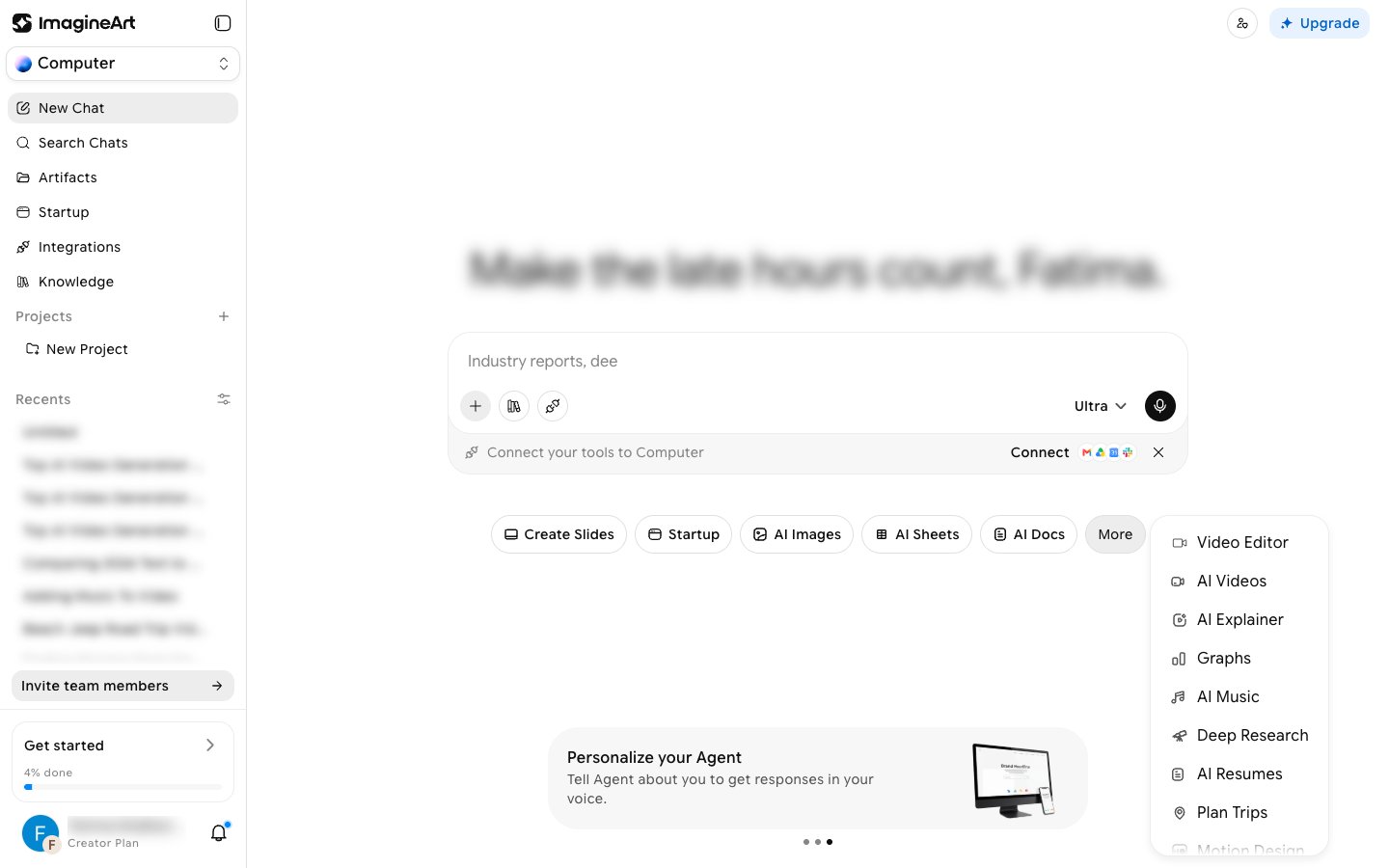 **Startup is the exception.** Clicking the **Startup** pill opens the separate website builder, with its own **Build** composer, rather than a chat preset.
## Two controls that shape every task
Every prompt bar has two controls worth understanding before you run anything.
### Model tier
**Startup is the exception.** Clicking the **Startup** pill opens the separate website builder, with its own **Build** composer, rather than a chat preset.
## Two controls that shape every task
Every prompt bar has two controls worth understanding before you run anything.
### Model tier
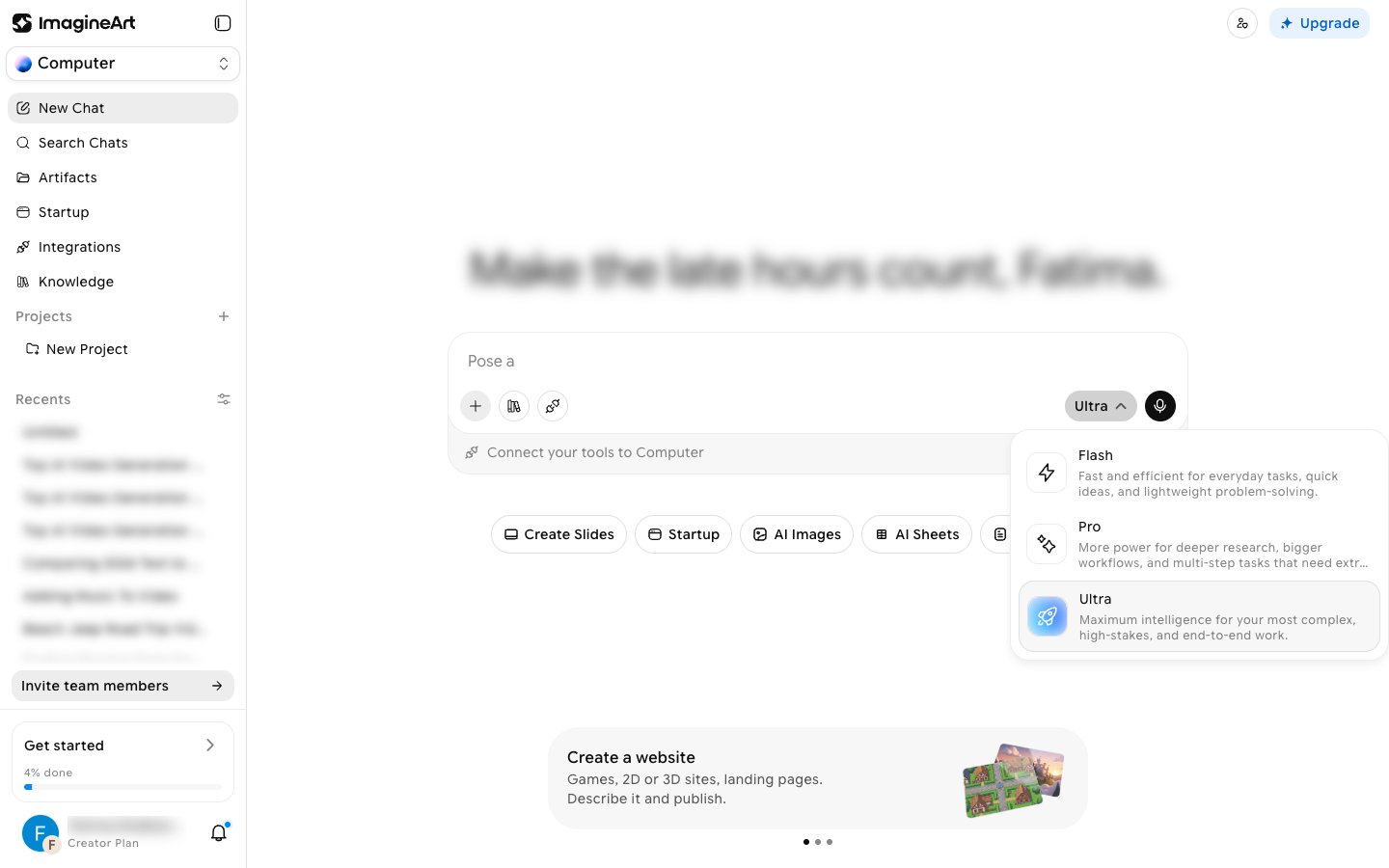 * **Flash** — fast and efficient for everyday tasks, quick ideas, and lightweight problem-solving.
* **Pro** — more power for deeper research, bigger workflows, and multi-step tasks that need extra capacity.
* **Ultra** — maximum intelligence for your most complex, high-stakes, end-to-end work.
### Ask permission
* **Flash** — fast and efficient for everyday tasks, quick ideas, and lightweight problem-solving.
* **Pro** — more power for deeper research, bigger workflows, and multi-step tasks that need extra capacity.
* **Ultra** — maximum intelligence for your most complex, high-stakes, end-to-end work.
### Ask permission
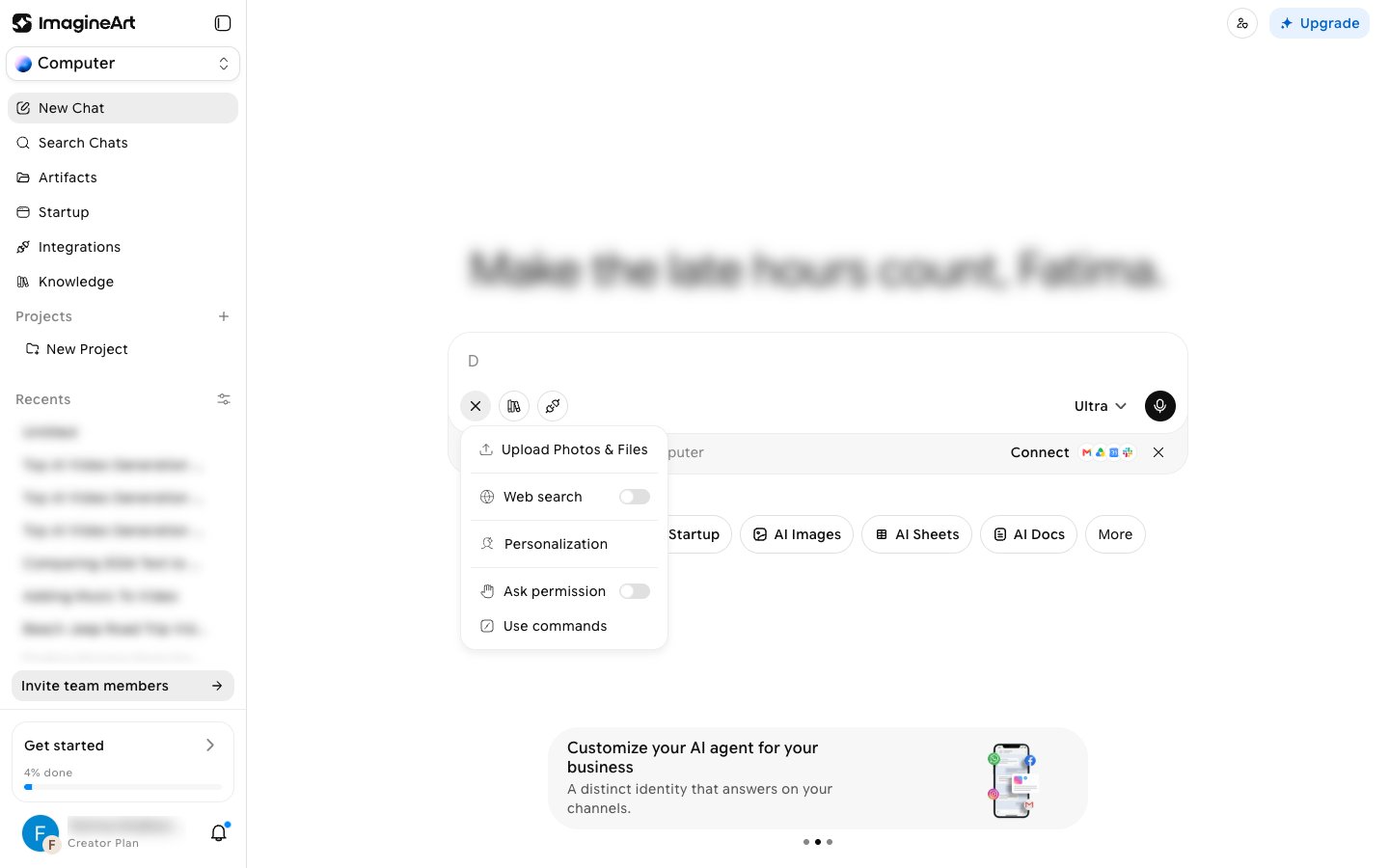 Click **+** in the prompt box to find the **Ask permission** toggle, alongside **Upload Photos & Files**, **Web search**, **Personalization**, and **Use commands**.
* **Off** (default): the agent runs without stopping, with full access to create, edit, or run intensive actions.
* **On**: the agent is meant to ask before creating or editing artifacts.
In earlier testing, the approval setting did not actually pause a full research run at any point, including at the report-writing step. Don't rely on it as a safety gate. Treat every run as if it will continue without stopping.
## Start from a preset in AI Images and AI Videos
The **AI Images** and **AI Videos** homes let you start from a ready-made look instead of a blank prompt. Open them from the **AI Images** pill, or from **More** > **AI Videos**.
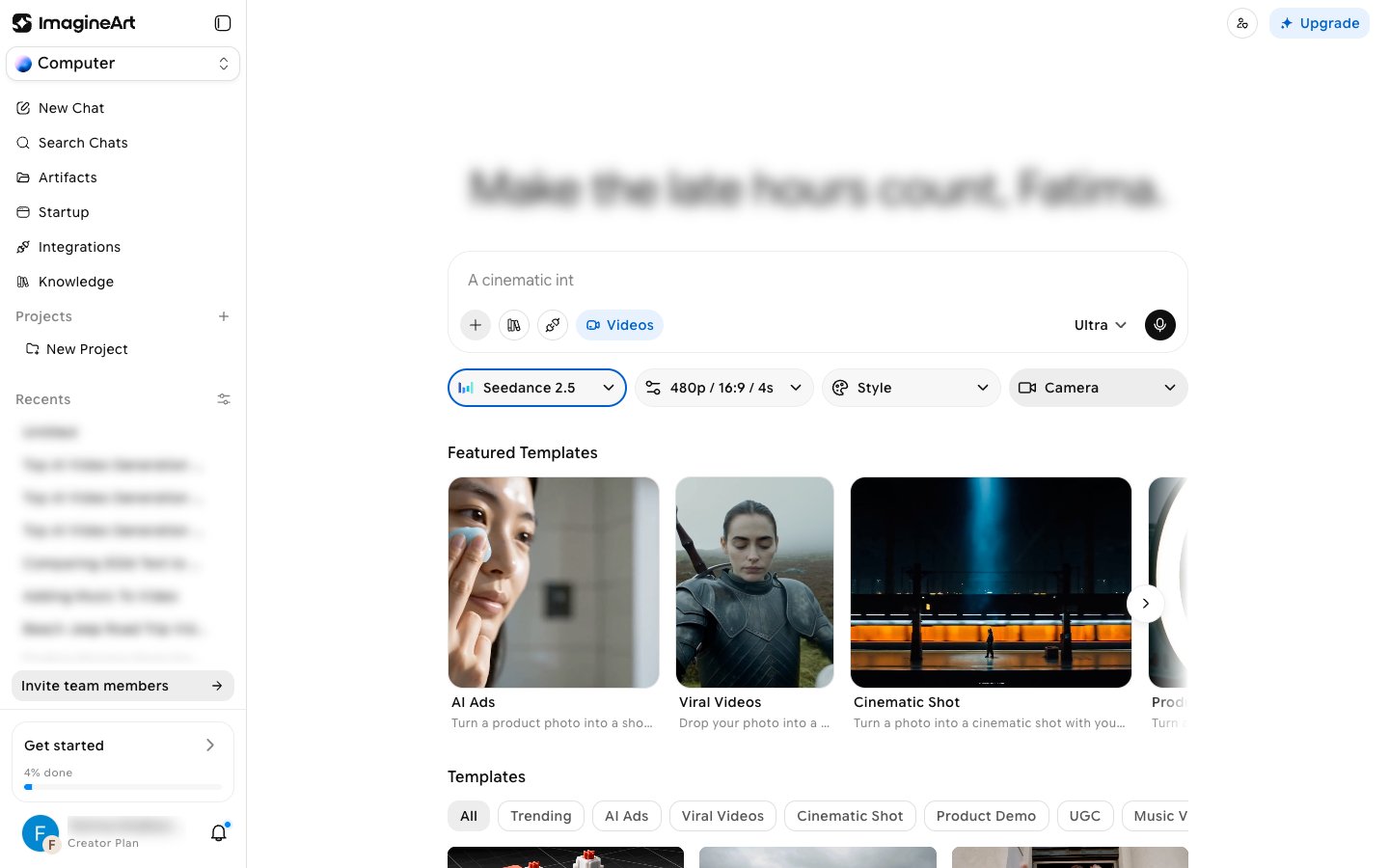
Below the prompt box, four dropdowns control the output:
* **Model**: pick a model, or **Auto** in AI Images to let Computer choose.
* **Settings**: in AI Images, set **Quality** (1K, 2K, 4K), **Aspect Ratio**, and **Variations** (1, 2, or 4). In AI Videos, set **Quality** (480p, 720p, 1080p), **Aspect Ratio**, and **Duration**.
* **Style**: apply a visual preset. AI Images includes 20 styles, such as **Photorealistic**, **Anime**, **Cinematic**, **Ghibli**, **Pixel Art**, and **Watercolor**.
* **Camera**: choose a camera angle. AI Images offers **Birdseye**, **Dutch**, **Low Hero**, **Medium**, and **Wide**.
Click **+** in the prompt box to find the **Ask permission** toggle, alongside **Upload Photos & Files**, **Web search**, **Personalization**, and **Use commands**.
* **Off** (default): the agent runs without stopping, with full access to create, edit, or run intensive actions.
* **On**: the agent is meant to ask before creating or editing artifacts.
In earlier testing, the approval setting did not actually pause a full research run at any point, including at the report-writing step. Don't rely on it as a safety gate. Treat every run as if it will continue without stopping.
## Start from a preset in AI Images and AI Videos
The **AI Images** and **AI Videos** homes let you start from a ready-made look instead of a blank prompt. Open them from the **AI Images** pill, or from **More** > **AI Videos**.
Below the prompt box, four dropdowns control the output:
* **Model**: pick a model, or **Auto** in AI Images to let Computer choose.
* **Settings**: in AI Images, set **Quality** (1K, 2K, 4K), **Aspect Ratio**, and **Variations** (1, 2, or 4). In AI Videos, set **Quality** (480p, 720p, 1080p), **Aspect Ratio**, and **Duration**.
* **Style**: apply a visual preset. AI Images includes 20 styles, such as **Photorealistic**, **Anime**, **Cinematic**, **Ghibli**, **Pixel Art**, and **Watercolor**.
* **Camera**: choose a camera angle. AI Images offers **Birdseye**, **Dutch**, **Low Hero**, **Medium**, and **Wide**.
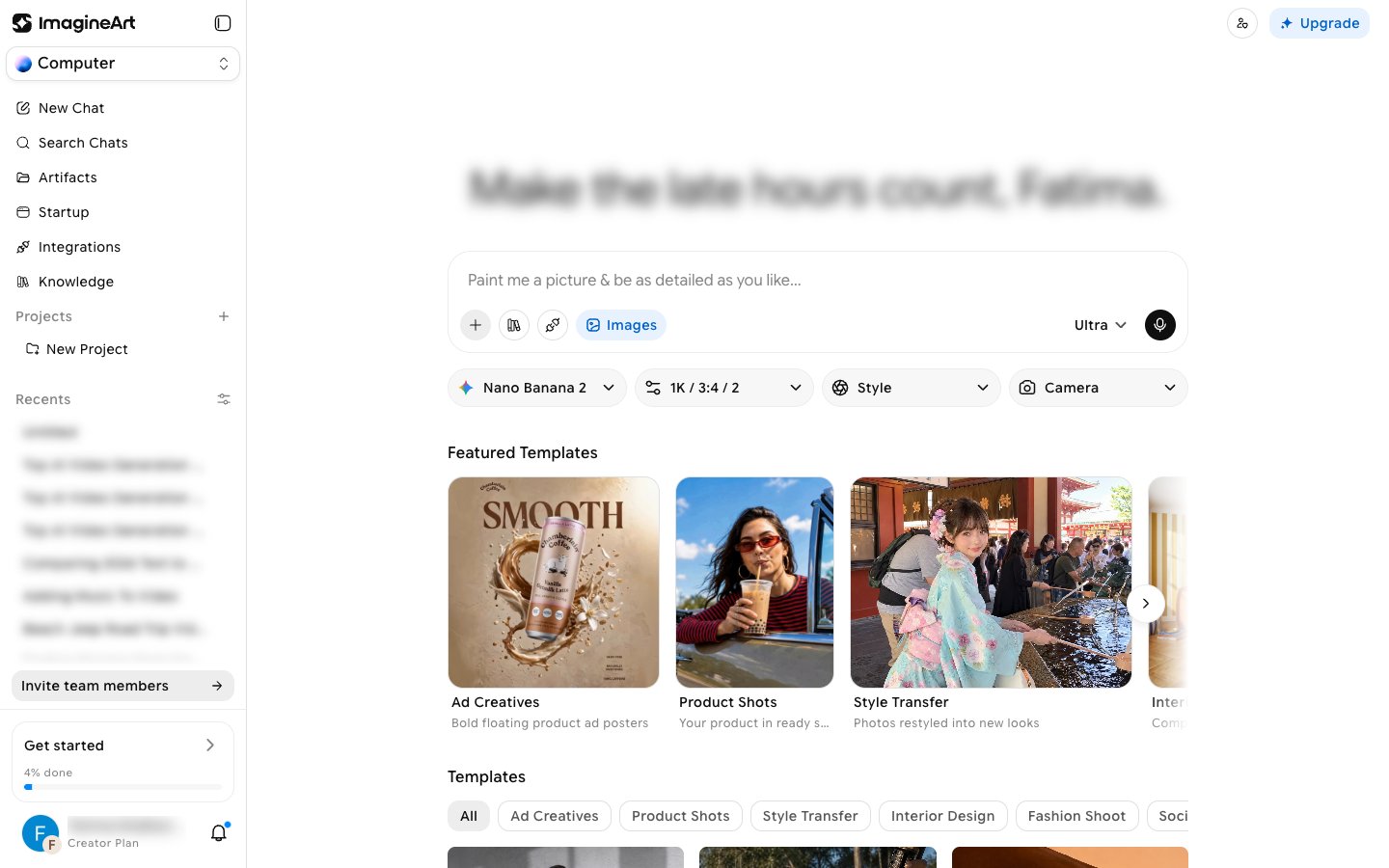 Browse **Featured Templates**, or filter the **Templates** gallery by category. Hover a template and click **Use Template**.
| Home | Template categories |
| - | - |
| **AI Images** | Ad Creatives, Product Shots, Style Transfer, Interior Design, Fashion Shoot, Social Thumbnail |
| **AI Videos** | Trending, AI Ads, Viral Videos, Cinematic Shot, Product Demo, UGC, Music Video, Fashion Film |
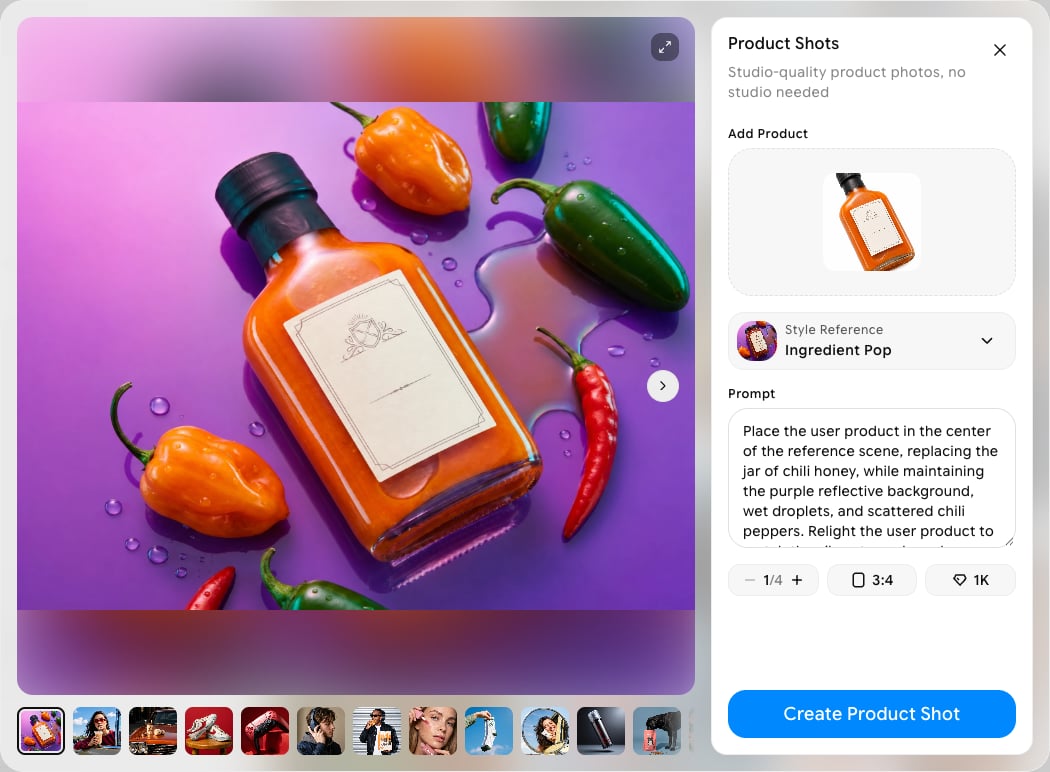
The template opens in its own window with example results, a prompt that's already written for you, and the inputs it needs. For example, **Product Shots** asks you to **Add Product**, lets you change the **Style Reference**, and has controls for the number of images, aspect ratio, and quality. Edit the prompt if you like, then click the create button (for example, **Create Product Shot**).
Browse **Featured Templates**, or filter the **Templates** gallery by category. Hover a template and click **Use Template**.
| Home | Template categories |
| - | - |
| **AI Images** | Ad Creatives, Product Shots, Style Transfer, Interior Design, Fashion Shoot, Social Thumbnail |
| **AI Videos** | Trending, AI Ads, Viral Videos, Cinematic Shot, Product Demo, UGC, Music Video, Fashion Film |
The template opens in its own window with example results, a prompt that's already written for you, and the inputs it needs. For example, **Product Shots** asks you to **Add Product**, lets you change the **Style Reference**, and has controls for the number of images, aspect ratio, and quality. Edit the prompt if you like, then click the create button (for example, **Create Product Shot**).
 The **AI Videos** home works the same way, with video models, video settings, and video templates such as **AI Ads**, **Viral Videos**, **Cinematic Shot**, **Product Demo**, **UGC**, **Music Video**, and **Fashion Film**.
 This documentation is built and hosted on [Mintlify](https://mintlify.com), a developer documentation platform.