> ## Documentation Index
> Fetch the complete documentation index at: https://docs.imagine.art/llms.txt
> Use this file to discover all available pages before exploring further.
# Create Image
> Experience the next frontier of AI artistry. Choose from Imagine 1.0, Flux, Seedream 4.0, and more to create stunning visuals from text prompts with unmatched details.
.avif?fit=max&auto=format&n=dSSXEmt0kV3UdAJL&q=85&s=ada8b69b75c2858b97abff135cd484ad) ### **What is Text to Image?**
**ImagineArt's Text-to-Image** is the bridge between your vocabulary and a visual masterpiece. By translating natural language into high-fidelity pixels, this feature allows you to bypass complex software and manual rendering.
With ImagineArt’s advanced style controls, you can fine-tune the "soul" of your image; perfect for high-impact social media assets, professional marketing campaigns, or personal passion projects. If you can describe it, ImagineArt can build it.
ImagineArt features the latest AI models alongside our proprietary options. See the model comparison at the end of this page for more details.
## Generating your first image
Go to [imagine.art/image](https://www.imagine.art/image). This opens the Image Studio, where all generation controls are available in the left-hand settings panel.
Choose the AI model you want to generate with. Each model has different strengths. See the [model comparison](#available-models) below.
### **What is Text to Image?**
**ImagineArt's Text-to-Image** is the bridge between your vocabulary and a visual masterpiece. By translating natural language into high-fidelity pixels, this feature allows you to bypass complex software and manual rendering.
With ImagineArt’s advanced style controls, you can fine-tune the "soul" of your image; perfect for high-impact social media assets, professional marketing campaigns, or personal passion projects. If you can describe it, ImagineArt can build it.
ImagineArt features the latest AI models alongside our proprietary options. See the model comparison at the end of this page for more details.
## Generating your first image
Go to [imagine.art/image](https://www.imagine.art/image). This opens the Image Studio, where all generation controls are available in the left-hand settings panel.
Choose the AI model you want to generate with. Each model has different strengths. See the [model comparison](#available-models) below.
.avif?fit=max&auto=format&n=dSSXEmt0kV3UdAJL&q=85&s=ca0df040bee5be56013b1c034ea895ed) Hover over any model name for about 3 seconds to see its credit cost and a short description before committing to it.
Type your description in the prompt box. The more specific and detailed your prompt, the more accurately the AI will match your intent.
Hover over any model name for about 3 seconds to see its credit cost and a short description before committing to it.
Type your description in the prompt box. The more specific and detailed your prompt, the more accurately the AI will match your intent.
 **Example prompts to try:**
* `A cinematic portrait of a woman in a neon-lit Tokyo alley, rain-soaked streets, shallow depth of field, 35mm film`
* `Architectural visualization of a minimalist beach house at golden hour, aerial view, photorealistic`
* `A whimsical children's book illustration of a fox wearing a red scarf, soft watercolor style`
* `Product shot of a matte black coffee mug on a marble surface, studio lighting, commercial photography`
Include descriptive details about lighting, mood, style, camera angle, and subject matter. Prompts like "a dog" will produce generic results; "a golden retriever puppy sitting in autumn leaves, soft natural light, bokeh background, portrait photography" will produce something specific and polished.
Configure your generation settings in the panel:
* **Aspect ratio** — Choose from standard ratios like 1:1, 16:9, 9:16, 3:2, and more depending on the model. Select the ratio that matches your intended output format (e.g., 9:16 for mobile, 16:9 for widescreen, 1:1 for social media).
* **Number of images** — Generate between 1 and 4 images per run. Generating more images per batch lets you compare results and pick the best one.
* **Resolution** — Some models support higher resolution outputs (2K or 4K). Higher resolutions cost more credits.
* **Prompt enhancer** — When enabled, ImagineArt automatically expands and refines your prompt before sending it to the model.
**Example prompts to try:**
* `A cinematic portrait of a woman in a neon-lit Tokyo alley, rain-soaked streets, shallow depth of field, 35mm film`
* `Architectural visualization of a minimalist beach house at golden hour, aerial view, photorealistic`
* `A whimsical children's book illustration of a fox wearing a red scarf, soft watercolor style`
* `Product shot of a matte black coffee mug on a marble surface, studio lighting, commercial photography`
Include descriptive details about lighting, mood, style, camera angle, and subject matter. Prompts like "a dog" will produce generic results; "a golden retriever puppy sitting in autumn leaves, soft natural light, bokeh background, portrait photography" will produce something specific and polished.
Configure your generation settings in the panel:
* **Aspect ratio** — Choose from standard ratios like 1:1, 16:9, 9:16, 3:2, and more depending on the model. Select the ratio that matches your intended output format (e.g., 9:16 for mobile, 16:9 for widescreen, 1:1 for social media).
* **Number of images** — Generate between 1 and 4 images per run. Generating more images per batch lets you compare results and pick the best one.
* **Resolution** — Some models support higher resolution outputs (2K or 4K). Higher resolutions cost more credits.
* **Prompt enhancer** — When enabled, ImagineArt automatically expands and refines your prompt before sending it to the model.
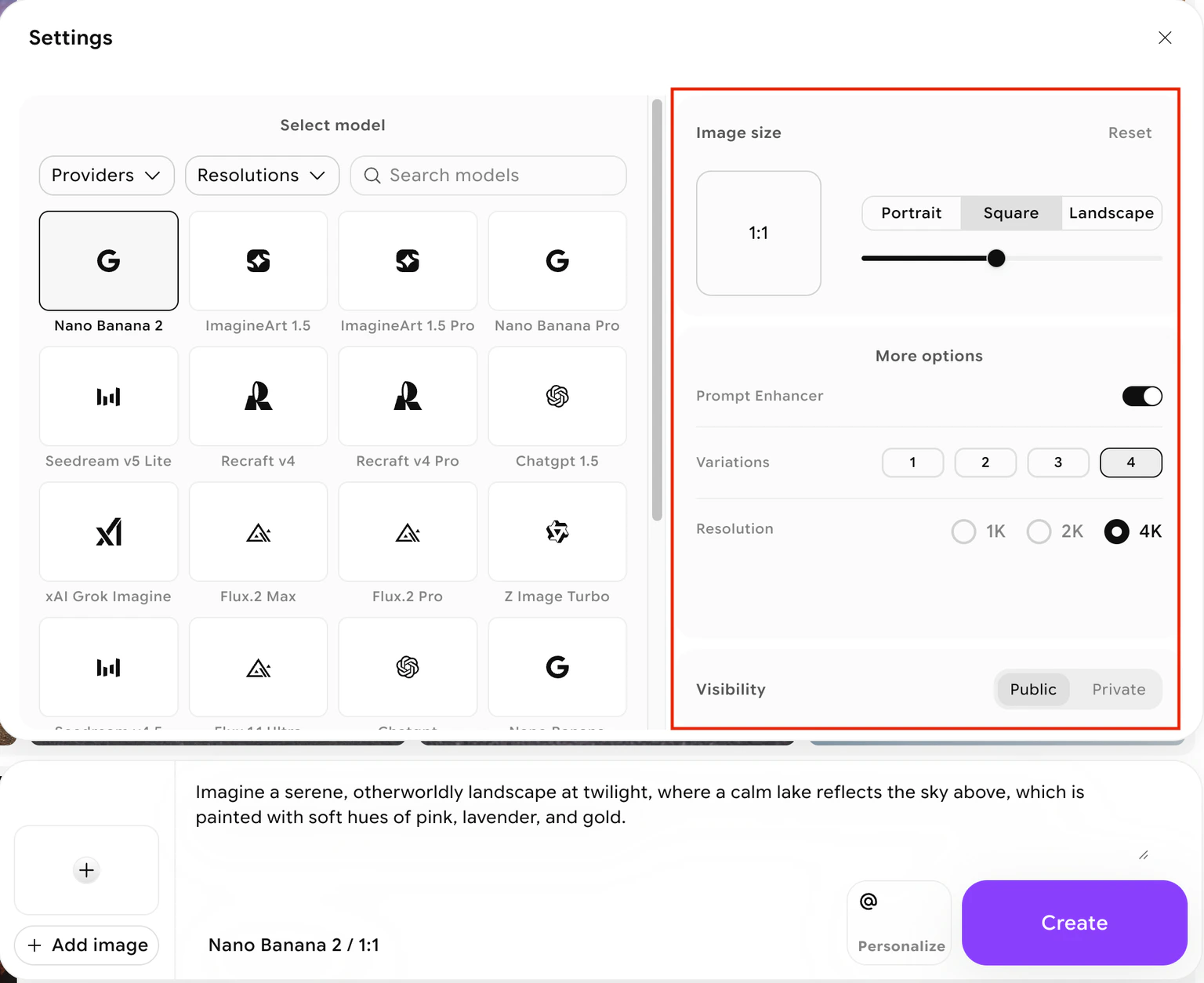 Your total credit cost updates dynamically as you change settings. Hover over the **Create** button to see the exact cost before generating.
Click the **Create** button to start generation. Most models complete within a few seconds to a minute depending on the model, resolution, and number of images requested. Your results appear directly in the canvas area.
Your total credit cost updates dynamically as you change settings. Hover over the **Create** button to see the exact cost before generating.
Click the **Create** button to start generation. Most models complete within a few seconds to a minute depending on the model, resolution, and number of images requested. Your results appear directly in the canvas area.
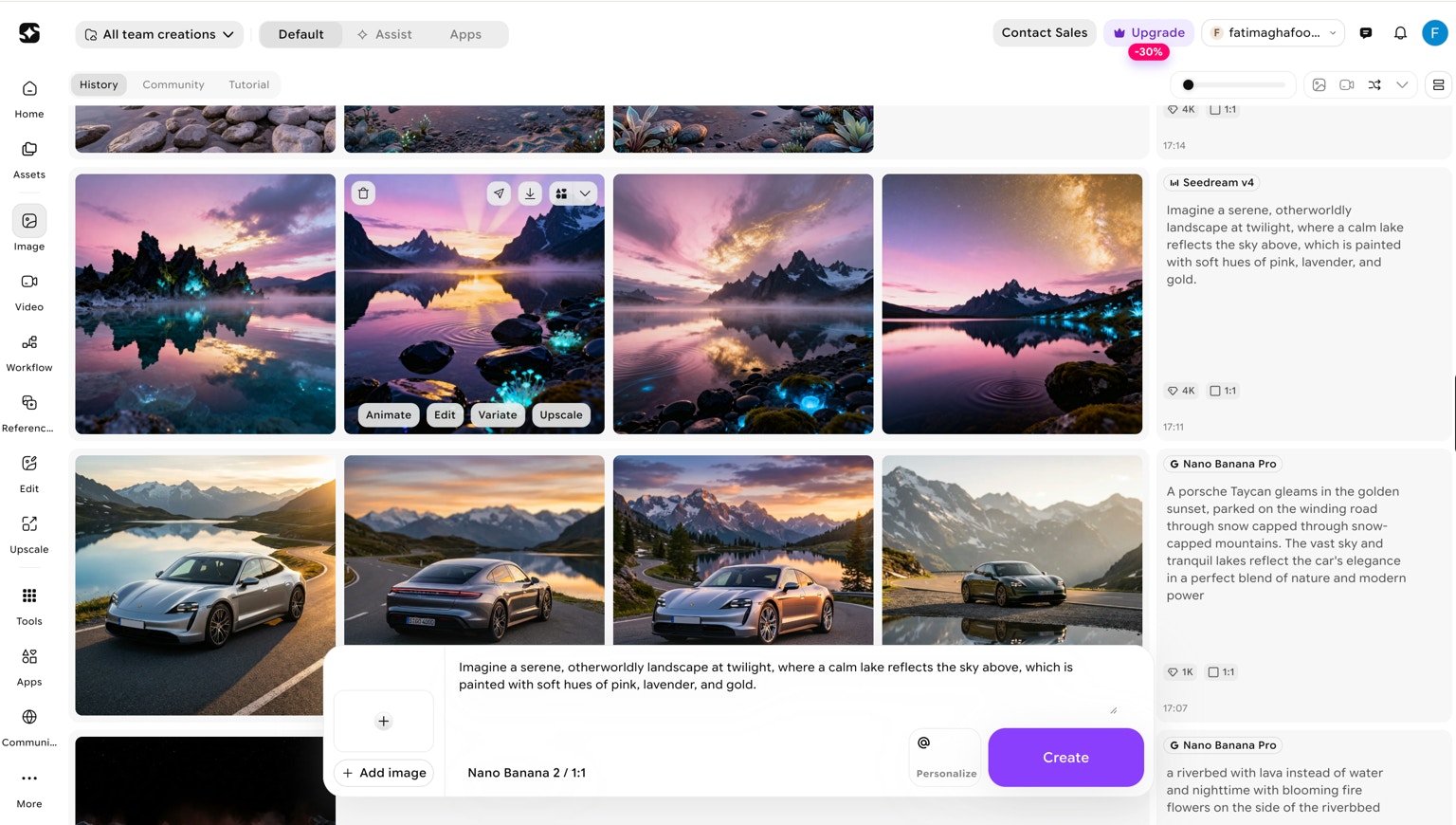 Review your generated images. From here you can:
* Use **Quick Actions** (Animate, Variate, Edit, Upscale) directly from the gallery
* Adjust your prompt and regenerate
* Download your favorite result
## Available models
Different models suit different creative goals. Here is a summary of what each model is designed for:
| Model | Best for |
| - | - |
| **Flux Dev** | Fast, high-detail generation with bold artistic diversity. Good default for most prompts. |
| **Flux 2 Pro** | High-quality artistic visuals with flexible creative control. |
| **Flux 2 Max** | High-resolution photorealistic rendering for detailed outputs. |
| **Flux 1.1 Ultra** | Fine-grained texture fidelity, ideal for product visualizations and architectural mock-ups. |
| **ImagineArt 1.0 / 1.5** | Versatile generation for creative and professional projects. |
| **ImagineArt 1.5 Pro** | Higher resolution version of ImagineArt 1.5, up to 4K. |
| **Nano Banana** | High-fidelity textures, complex illustrations, and stylized designs. |
| **Nano Banana 2** | Upgraded version supporting up to 4K output. |
| **ChatGPT Image** | Prompt-accurate visuals, especially strong at incorporating readable text into images. |
| **Imagen 3** | Photorealistic images with accurate lighting, textures, and object relationships. |
| **Imagen 4** | High-resolution photorealistic images with fine detail. |
| **Ideogram v3** | Advanced typography—generates images with crisp, correctly spelled text in complex layouts. |
| **Ideogram Character** | One-shot character consistency model. |
| **Minimax Image** | Realistic portraits, product images, and architectural structures. |
| **Seedream v3** | Cinematic, dream-like scenes with rich lighting and atmospheric depth. |
| **Seedream v4 / v4.5** | Captures cinematic visuals with lush lighting and creative depth, up to 4K. |
| **Seedream v5 Lite** | Balanced quality and speed, up to 3K output. |
| **Dreamina 3.1** | Mood, design, worldbuilding, and storytelling visuals. |
| **Qwen Image** | Highly detailed and stylized images with enhanced lighting and texture control. |
| **Recraft v4** | Clean, high-quality stylized outputs. |
| **Recraft v4 Pro** | Professional-grade stylized rendering. |
| **xAI Grok Imagine** | Fast generation at an accessible credit cost. |
| **Z Image Turbo** | Budget-friendly rapid generation. |
The model list evolves as new models are added. For the latest details, visit [Image mode](https://www.imagine.art/image) and hover any model name to see its current description and credit cost.
This documentation is built and hosted on [Mintlify](https://mintlify.com), a developer documentation platform.
Review your generated images. From here you can:
* Use **Quick Actions** (Animate, Variate, Edit, Upscale) directly from the gallery
* Adjust your prompt and regenerate
* Download your favorite result
## Available models
Different models suit different creative goals. Here is a summary of what each model is designed for:
| Model | Best for |
| - | - |
| **Flux Dev** | Fast, high-detail generation with bold artistic diversity. Good default for most prompts. |
| **Flux 2 Pro** | High-quality artistic visuals with flexible creative control. |
| **Flux 2 Max** | High-resolution photorealistic rendering for detailed outputs. |
| **Flux 1.1 Ultra** | Fine-grained texture fidelity, ideal for product visualizations and architectural mock-ups. |
| **ImagineArt 1.0 / 1.5** | Versatile generation for creative and professional projects. |
| **ImagineArt 1.5 Pro** | Higher resolution version of ImagineArt 1.5, up to 4K. |
| **Nano Banana** | High-fidelity textures, complex illustrations, and stylized designs. |
| **Nano Banana 2** | Upgraded version supporting up to 4K output. |
| **ChatGPT Image** | Prompt-accurate visuals, especially strong at incorporating readable text into images. |
| **Imagen 3** | Photorealistic images with accurate lighting, textures, and object relationships. |
| **Imagen 4** | High-resolution photorealistic images with fine detail. |
| **Ideogram v3** | Advanced typography—generates images with crisp, correctly spelled text in complex layouts. |
| **Ideogram Character** | One-shot character consistency model. |
| **Minimax Image** | Realistic portraits, product images, and architectural structures. |
| **Seedream v3** | Cinematic, dream-like scenes with rich lighting and atmospheric depth. |
| **Seedream v4 / v4.5** | Captures cinematic visuals with lush lighting and creative depth, up to 4K. |
| **Seedream v5 Lite** | Balanced quality and speed, up to 3K output. |
| **Dreamina 3.1** | Mood, design, worldbuilding, and storytelling visuals. |
| **Qwen Image** | Highly detailed and stylized images with enhanced lighting and texture control. |
| **Recraft v4** | Clean, high-quality stylized outputs. |
| **Recraft v4 Pro** | Professional-grade stylized rendering. |
| **xAI Grok Imagine** | Fast generation at an accessible credit cost. |
| **Z Image Turbo** | Budget-friendly rapid generation. |
The model list evolves as new models are added. For the latest details, visit [Image mode](https://www.imagine.art/image) and hover any model name to see its current description and credit cost.
This documentation is built and hosted on [Mintlify](https://mintlify.com), a developer documentation platform.