> ## Documentation Index
> Fetch the complete documentation index at: https://docs.imagine.art/llms.txt
> Use this file to discover all available pages before exploring further.
# What is Fashion Studio?
> Fashion Studio is ImagineArt's dedicated environment for generating fashion campaign and catalog content.
Fashion Studio is a dedicated AI environment purpose-built for fashion content. Instead of a general-purpose image or video prompt, it gives you a structured workflow built around fashion assets: a model, an outfit, styling details, and a scene.
 ## Editorial, Catalog, and Lookbook
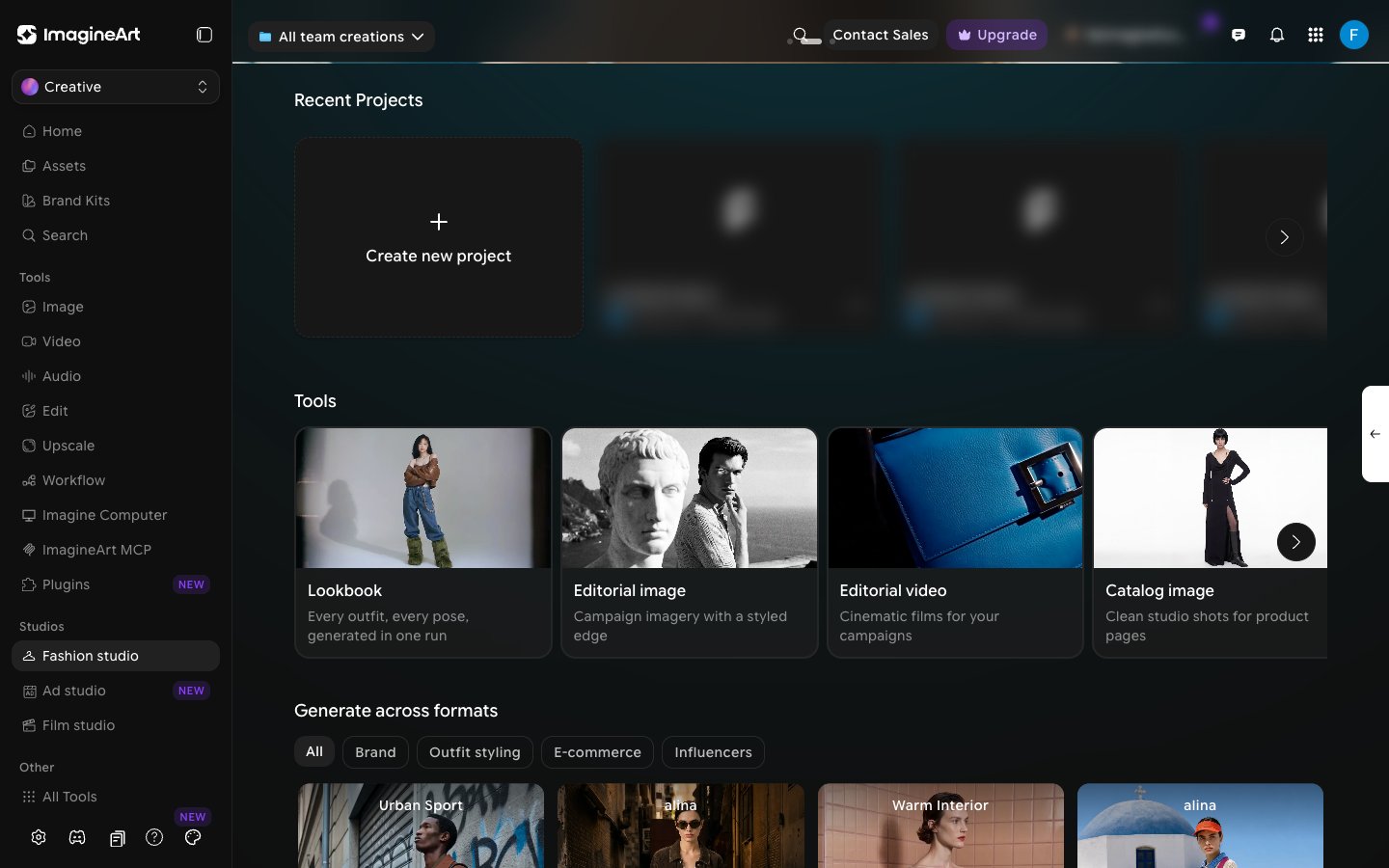
All three modes share the same editor — the same model picker, outfit picker, background and pose pickers — so switching between them doesn't mean learning new controls. What changes is the kind of shoot you're going for:
* **[Editorial](/fashion-studio/editorial-shoot)** — campaign imagery and video with a styled, editorial edge. Use this for brand campaigns and social content where mood and styling matter.
* **[Catalog](/fashion-studio/catalog-shoot)** — clean, consistent studio shots for product listings. Use this when you need product-page-ready images or clips without an editorial "look."
* **[Lookbook](/fashion-studio/lookbook)** — batch mode. Put one model in several outfits and poses, and generate every combination in one run.
Because the underlying controls are the same, you can build a look in one mode and know your way around the others immediately.
## Building a shot
Whichever mode you're in, the editor is built around the same pieces:
* **[Models](/fashion-studio/models)** — pick a preset model, reuse one you've created before, or generate a new one.
* **[Choosing an outfit](/fashion-studio/choosing-an-outfit)** — preset garments, footwear, and accessories, or upload your own.
* **[Scenes & poses](/fashion-studio/scenes-and-poses)** — a large preset library for backgrounds and poses, or bring your own reference photo (backgrounds can also be generated from a prompt).
* **[Templates](/fashion-studio/templates)** — skip building a shot entirely and start from a ready-made look.
Beyond still images, each mode also has:
* **[Video mode](/fashion-studio/video-shoot)** — turn a shot into a short video.
* **[Editing a creation](/fashion-studio/editing-a-creation)** — regenerate an existing image with a new scene, angle, or description.
This documentation is built and hosted on [Mintlify](https://mintlify.com), a developer documentation platform.
## Editorial, Catalog, and Lookbook
All three modes share the same editor — the same model picker, outfit picker, background and pose pickers — so switching between them doesn't mean learning new controls. What changes is the kind of shoot you're going for:
* **[Editorial](/fashion-studio/editorial-shoot)** — campaign imagery and video with a styled, editorial edge. Use this for brand campaigns and social content where mood and styling matter.
* **[Catalog](/fashion-studio/catalog-shoot)** — clean, consistent studio shots for product listings. Use this when you need product-page-ready images or clips without an editorial "look."
* **[Lookbook](/fashion-studio/lookbook)** — batch mode. Put one model in several outfits and poses, and generate every combination in one run.
Because the underlying controls are the same, you can build a look in one mode and know your way around the others immediately.
## Building a shot
Whichever mode you're in, the editor is built around the same pieces:
* **[Models](/fashion-studio/models)** — pick a preset model, reuse one you've created before, or generate a new one.
* **[Choosing an outfit](/fashion-studio/choosing-an-outfit)** — preset garments, footwear, and accessories, or upload your own.
* **[Scenes & poses](/fashion-studio/scenes-and-poses)** — a large preset library for backgrounds and poses, or bring your own reference photo (backgrounds can also be generated from a prompt).
* **[Templates](/fashion-studio/templates)** — skip building a shot entirely and start from a ready-made look.
Beyond still images, each mode also has:
* **[Video mode](/fashion-studio/video-shoot)** — turn a shot into a short video.
* **[Editing a creation](/fashion-studio/editing-a-creation)** — regenerate an existing image with a new scene, angle, or description.
This documentation is built and hosted on [Mintlify](https://mintlify.com), a developer documentation platform.