> ## Documentation Index
> Fetch the complete documentation index at: https://docs.imagine.art/llms.txt
> Use this file to discover all available pages before exploring further.
# Showcase Your Work
> Publish and share your AI-generated images and videos in the ImagineArt community to build your portfolio and grow your audience.
## Get more visible
Showcasing your work on ImagineArt allows you to gain visibility, build your portfolio, and connect with a global audience. Whether you're a professional artist or a hobbyist, this platform is your space to display your best creations and inspire others.
### How to Showcase Your Work
Upload your best images, videos, or AI-generated content directly to your profile. Choose between **2K** or **4K** resolution for higher quality.
Select your top assets to highlight on your profile. Curate your work to reflect your style and expertise.
Interact with other creators by liking, commenting, and sharing feedback on their work. Build connections and inspire others.
### Share an asset with a link
Use the **Share Generation** panel to send one of your creations to anyone, even people who don't use ImagineArt. The panel creates a public link to the asset. You can copy it or post it straight to a social network. You can open the panel from an asset card or from the full view of an asset.
Anyone with the link can view the asset. Only share assets you're happy to make public.
Go to **Assets** and hover over the asset you want to share. Click **More actions** (the three-dot icon), then select **Share**.
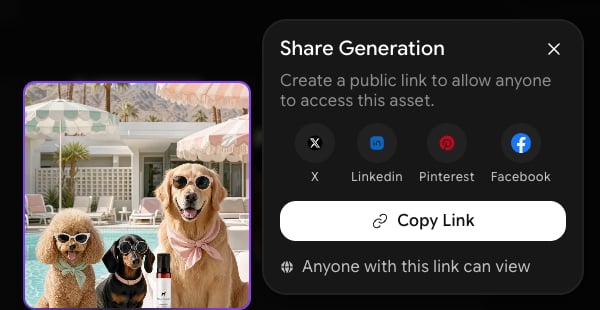
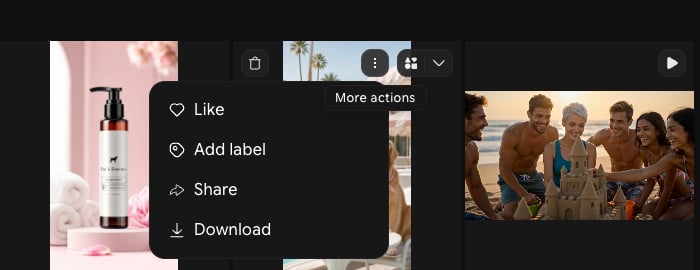 The **Share Generation** panel opens next to the asset. Pick one of these options:
* Click **X**, **Linkedin**, **Pinterest**, or **Facebook** to open that site's share page with a link to your asset.
* Click **Copy Link** to copy the link and paste it anywhere.
The **Share Generation** panel opens next to the asset. Pick one of these options:
* Click **X**, **Linkedin**, **Pinterest**, or **Facebook** to open that site's share page with a link to your asset.
* Click **Copy Link** to copy the link and paste it anywhere.
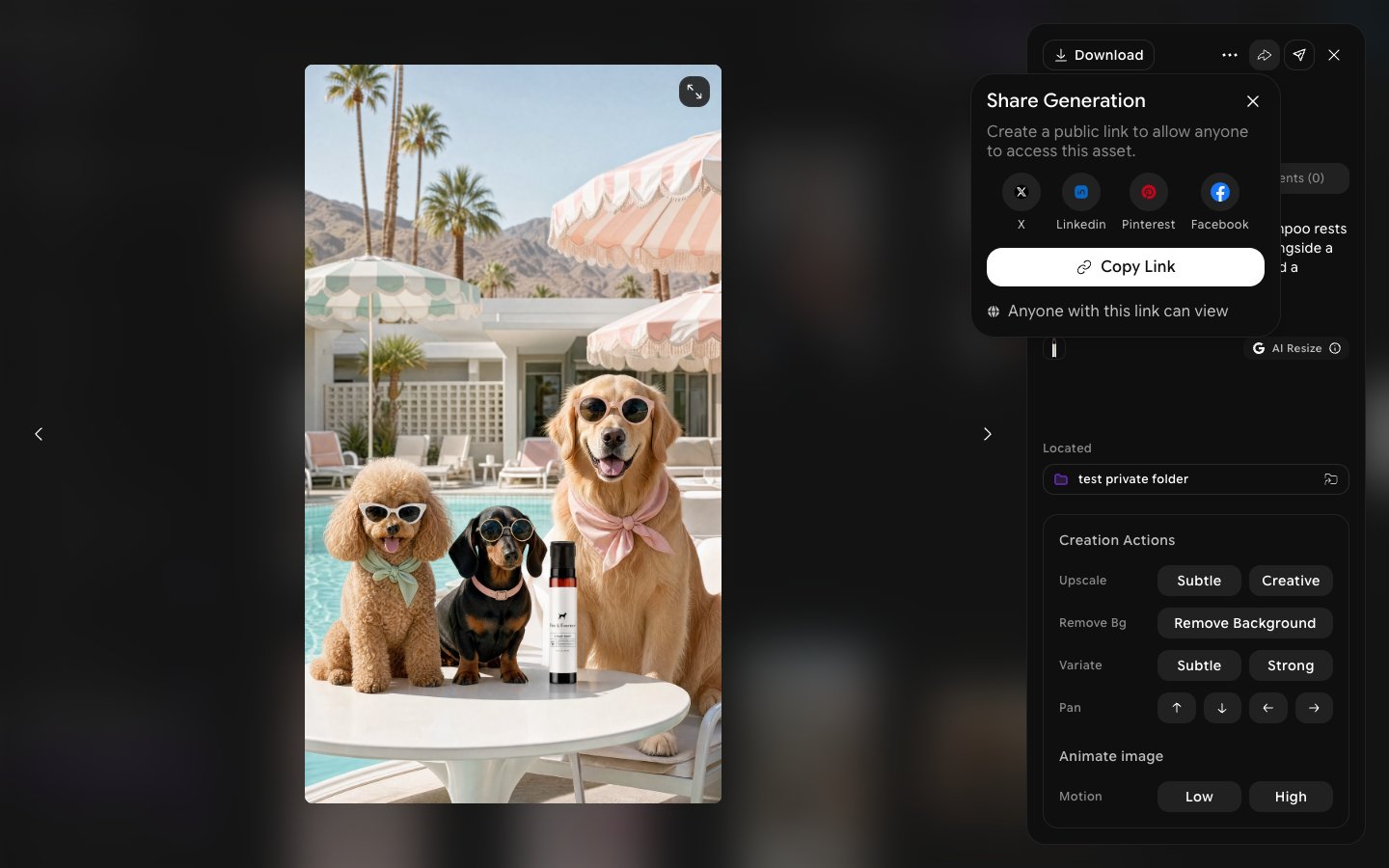
 Click an asset to open it in full view. Click the **Share** icon at the top of the details panel, next to the three-dot menu. The same **Share Generation** panel opens.
 #### What Happens After You Publish?
Once you publish your assets:
* **Get Feedback**: Community members can like, download, add to collection and follow your work.
* **Increase Engagement**: More interaction can lead to higher exposure and more downloads.
* **Monetize**: Earn credits every time someone downloads your asset in 2K or 4K quality.
Showcasing your work on ImagineArt is an essential step in building your presence, gaining recognition, and engaging with a global creative community. Start uploading and share your creations with the world today!
This documentation is built and hosted on [Mintlify](https://mintlify.com), a developer documentation platform.
#### What Happens After You Publish?
Once you publish your assets:
* **Get Feedback**: Community members can like, download, add to collection and follow your work.
* **Increase Engagement**: More interaction can lead to higher exposure and more downloads.
* **Monetize**: Earn credits every time someone downloads your asset in 2K or 4K quality.
Showcasing your work on ImagineArt is an essential step in building your presence, gaining recognition, and engaging with a global creative community. Start uploading and share your creations with the world today!
This documentation is built and hosted on [Mintlify](https://mintlify.com), a developer documentation platform.