> ## Documentation Index
> Fetch the complete documentation index at: https://docs.imagine.art/llms.txt
> Use this file to discover all available pages before exploring further.
# Understanding the Workspace
> The Ad Studio home and project workspace — learn them once and every later section gets faster.
Ad Studio has two views: the **home**, where you start and find your work, and the **project workspace**, where ads are made. Knowing what each one does will make every later section faster to follow.
## The home
When you open Ad Studio, you land on the home. It's built to get you to your first ad quickly, with everything stacked in one scrolling page:
A carousel of example ads at the top, each labeled with its format (for example, Football TVC or Pro Virtual Try ON).
**Create new project** plus your latest projects. **See all** opens the full project list.
Entry points for Image Ads, Video Ads, URL to Ad, Motion Design, and Ad Reference.
A searchable gallery of ready-made looks to recreate.
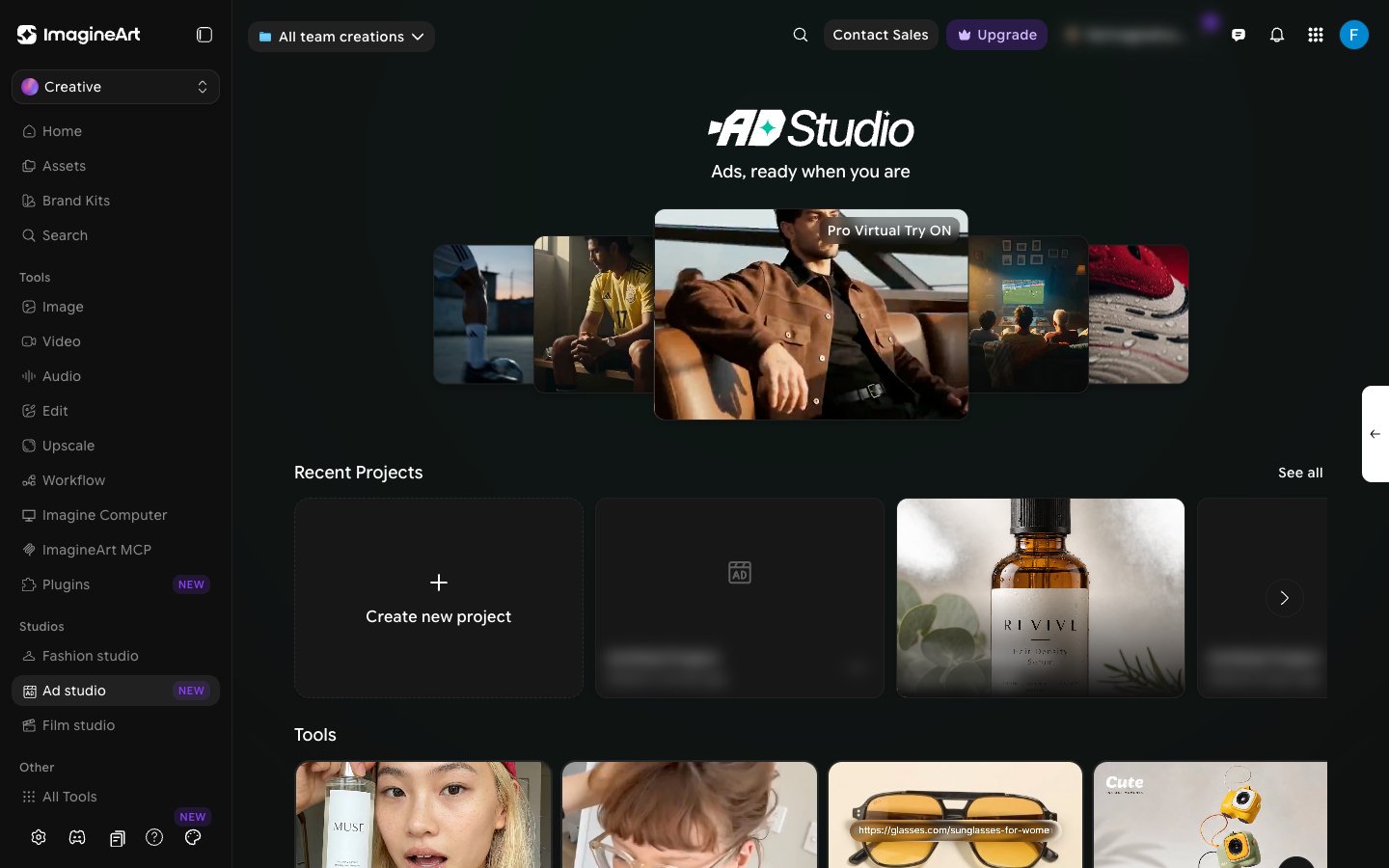 ### Recent Projects
Every ad you build lives inside a project. Click **Create new project** to start one, or click a project card to reopen it. Use the arrow at the end of the row to scroll through more projects, or click **See all** to open **All Projects**, where you can search projects and sort them (**Newest First** by default).
### Tools
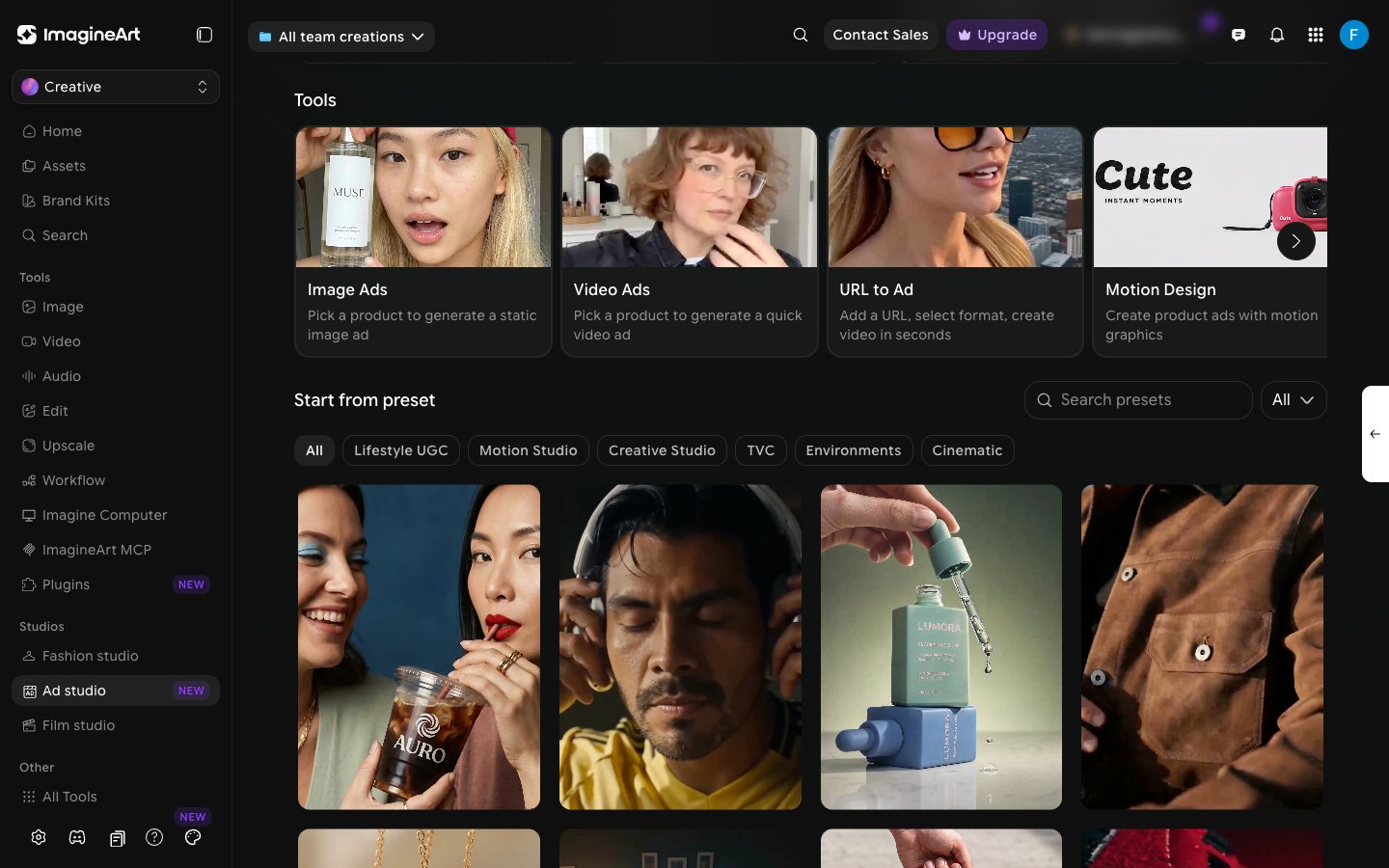
The **Tools** row has one card per way to start an ad:
* **Image Ads** — pick a product to generate a static image ad.
* **Video Ads** — pick a product to generate a quick video ad.
* **[URL to Ad](/ad-studio/url-to-ad)** — add a URL, select a format, and create a video.
* **[Motion Design](/ad-studio/motion-design)** — create product ads with motion graphics, as a storyboard of independently editable scenes.
* **[Ad Reference](/ad-studio/ad-reference)** — take a viral ad and add your product to it.
Use the arrow on the right of the row to scroll to the cards that don't fit on screen.
On the home, the left sidebar is ImagineArt's main navigation. Its **Tools** section lists app-wide tools like **Image** and **Video**, not the Ad Studio tools. To open URL to Ad, Motion Design, or Ad Reference from the home, use the cards in this row.
### Start from preset
Below **Tools** is a gallery of presets that double as inspiration and a quick start. Filter it by category — **Lifestyle UGC**, **Motion Studio**, **Creative Studio**, **TVC**, **Environments**, and **Cinematic** — search it with **Search presets**, or use the **All** dropdown to show only **Image** or **Video** presets. Each preset has a **Recreate** button.
### Recent Projects
Every ad you build lives inside a project. Click **Create new project** to start one, or click a project card to reopen it. Use the arrow at the end of the row to scroll through more projects, or click **See all** to open **All Projects**, where you can search projects and sort them (**Newest First** by default).
### Tools
The **Tools** row has one card per way to start an ad:
* **Image Ads** — pick a product to generate a static image ad.
* **Video Ads** — pick a product to generate a quick video ad.
* **[URL to Ad](/ad-studio/url-to-ad)** — add a URL, select a format, and create a video.
* **[Motion Design](/ad-studio/motion-design)** — create product ads with motion graphics, as a storyboard of independently editable scenes.
* **[Ad Reference](/ad-studio/ad-reference)** — take a viral ad and add your product to it.
Use the arrow on the right of the row to scroll to the cards that don't fit on screen.
On the home, the left sidebar is ImagineArt's main navigation. Its **Tools** section lists app-wide tools like **Image** and **Video**, not the Ad Studio tools. To open URL to Ad, Motion Design, or Ad Reference from the home, use the cards in this row.
### Start from preset
Below **Tools** is a gallery of presets that double as inspiration and a quick start. Filter it by category — **Lifestyle UGC**, **Motion Studio**, **Creative Studio**, **TVC**, **Environments**, and **Cinematic** — search it with **Search presets**, or use the **All** dropdown to show only **Image** or **Video** presets. Each preset has a **Recreate** button.
 ## The project workspace
Opening a project switches to the project workspace, which has its own Ad Studio sidebar next to the main app navigation. This sidebar lists the **Tools** (URL to Ad, Motion Design, Ad Reference) and your **Projects**, with a search box and a **+** button to start another project. The center shows the control panel, built around a set of cards:
## The project workspace
Opening a project switches to the project workspace, which has its own Ad Studio sidebar next to the main app navigation. This sidebar lists the **Tools** (URL to Ad, Motion Design, Ad Reference) and your **Projects**, with a search box and a **+** button to start another project. The center shows the control panel, built around a set of cards:
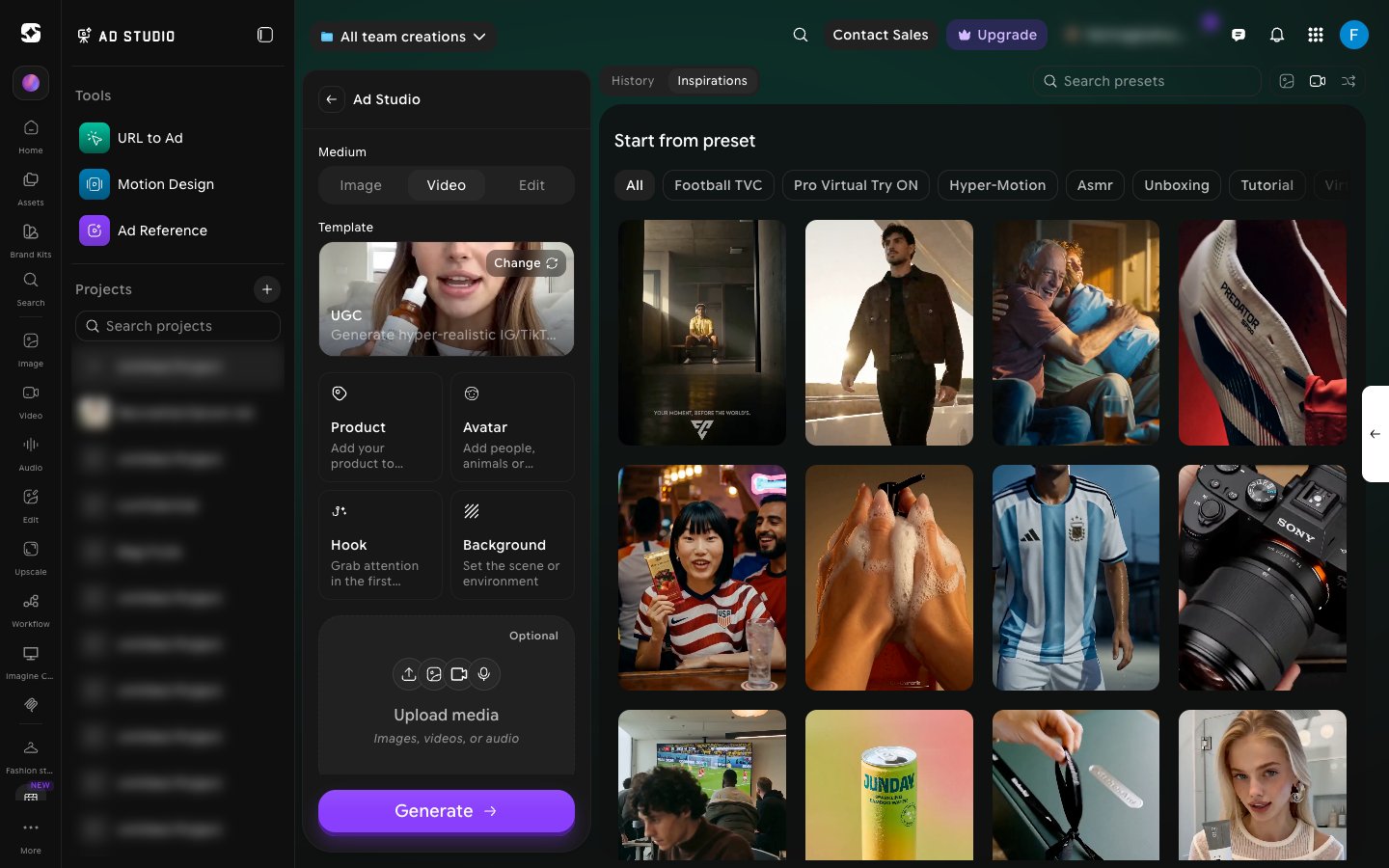 * **Medium.** Switches the whole panel between **Image**, **Video**, and **Edit**. **Edit** replaces the cards with an upload area for an image you want to edit.
* **Template.** Shows your currently selected format, with a **Change** button to switch between the 8 real ad formats.
* **Product.** Add the product that will be featured.
* **Avatar.** Add the person, animal, or mascot who appears in the ad.
* **Hook.** Pick from a library of named hook effects, filterable by Stunt, Subtle, and seasonal categories.
* **Background.** Choose where the ad takes place.
* **Describe your advertisement (optional).** Free text for anything the cards above don't cover. Use the **@** symbol to pull in specific products or avatars by name.
* **Output pills.** Aspect ratio, quality, and duration, shown as three separate pills below the description field.
* **Generate.** The big purple button that generates your ad.
See [Building an Ad From Scratch](/ad-studio/building-from-scratch) for the full depth of each of these.
## The top bar
Project navigation, search, contact sales, plan upgrades, notifications, and your profile menu. Standard top-bar functionality — nothing creative happens here.
**Try this** — Before you read further, open a project in Ad Studio and click each of the control cards (Template, Hook, Background) plus the output pills below the description field. Just notice what options appear — you'll get more from the next sections if you've already seen the menus.
This documentation is built and hosted on [Mintlify](https://mintlify.com), a developer documentation platform.
* **Medium.** Switches the whole panel between **Image**, **Video**, and **Edit**. **Edit** replaces the cards with an upload area for an image you want to edit.
* **Template.** Shows your currently selected format, with a **Change** button to switch between the 8 real ad formats.
* **Product.** Add the product that will be featured.
* **Avatar.** Add the person, animal, or mascot who appears in the ad.
* **Hook.** Pick from a library of named hook effects, filterable by Stunt, Subtle, and seasonal categories.
* **Background.** Choose where the ad takes place.
* **Describe your advertisement (optional).** Free text for anything the cards above don't cover. Use the **@** symbol to pull in specific products or avatars by name.
* **Output pills.** Aspect ratio, quality, and duration, shown as three separate pills below the description field.
* **Generate.** The big purple button that generates your ad.
See [Building an Ad From Scratch](/ad-studio/building-from-scratch) for the full depth of each of these.
## The top bar
Project navigation, search, contact sales, plan upgrades, notifications, and your profile menu. Standard top-bar functionality — nothing creative happens here.
**Try this** — Before you read further, open a project in Ad Studio and click each of the control cards (Template, Hook, Background) plus the output pills below the description field. Just notice what options appear — you'll get more from the next sections if you've already seen the menus.
This documentation is built and hosted on [Mintlify](https://mintlify.com), a developer documentation platform.